
1. Video - User registration
Transcript
In this video we'll look at the example user registration form and how a user can create an account on your site.
A link to the registration form is normally displayed beneath the login form.
The first page asks for the user's email address. The form does several things with it.
First it emails a PIN to the address, which the user has to enter onto the next page. This makes sure the user definitely has access to that address aren't aren't trying to set up a spoofed account.
I'll get three attempts to enter the PIN. If I get it wrong three times, I'll have to request a new one.
Now that I've entered the PIN, in the background the form checks that the email address isn't already registered with the site. This prevents me creating duplicate accounts. If the email address was found, I'd be prevented from creating a new account and advised to either log in or reset my password.
No duplicates have been found, so I can continue creating my account.
Next, this example form asks for my name, which will be added to my user profile. It then lets me enter a password which has to meet the complexity rules.
And that's it, I've now got an account and can log into the site using my email address and the password I just created.
2. The registration form
Site registration uses a single form. The form is responsible for generating and checking the PIN, checking the the user's email address isn't already registered, and creating the user's account.
Registration form overview
The example registration form is called CITIZENSIMPLESIGNUPEXAMPLE. If you want to change anything in the form, it's best to take a copy of it so that future updates don't overwrite your changes.
Enter your email
Users need an email address to register with the site. The email entered on this first page will become the user's login username.
Enter the PIN
To confirm that the user is registering with their own email address (ie, that they have access to that email address) the form emails them a PIN. The correct PIN needs to be entered to continue with registration.
If the user gets the PIN wrong three times they'll have to request a new one.
Checking for duplicate users
If the email is already registered as a login, the user won't be able to progress any further. The form displays a link to the login page. From there the user can reset their password if they need to.
Creating a profile
Apart from their email address, the only other information the form asks for is the user's name. This will become their preferred name in their account.
You could add more fields to this page if you want users to add more information to their profile at this stage. The CREATEUSER action field has a "User profile Data" function which maps form fields to fields in your site user profile form:
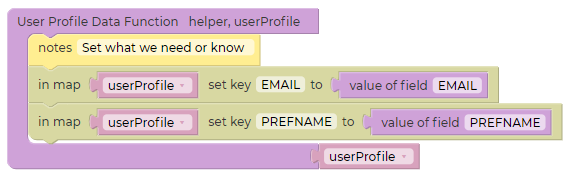
Otherwise users will be able to update their profile via their My Account page.
User profiles and My Account are covered in more detail later in this course.
When this page is submitted the account is created and the user receives a confirmation email.
Setting a password
The final step is for the user to set a password for their account.
Password complexity rules are set centrally in iCM's User Settings. The form looks up the password complexity rules and displays appropriate guidance to the user.
Done
The final page confirms that the user's account has been created and links to your site's login page. The link assumes your login article has the friendly URL /login.
User groups
It's worth pointing out that the registration form doesn't add new users to any user groups. That's handled by the login article.
Registration article
The registration form needs to be published on your site using the Forms Service template.
In our standard installation the registration article is called "Create a new account". You'll find it in the top utility menu:
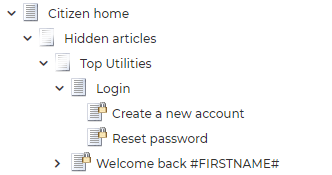
The article is secured to the PUBLICONLY user group - this means it is hidden from users who are logged in.


