
1. Video - How login works
Transcript
This video looks at site logins and setting up the login article.
The login article uses the Authentication template. It lets users log in with any of the login providers that have been configured.
In this example we've got the platforms standard login with a username and password for users who have completed the registration form and created an account. There's also the option to log in with Facebook or Google.
Beneath the login are links to the registration form and password reset form.
If we look at how this article is set up in iCM.
The article heading should be something like "Login" as that's the text that users will see on the article and in any menus where it appears.
Next we've got the providers that will appear on the login form. Providers are an advanced feature of the platform, setup in the API Server. This list shows providers that have been set up. The important thing for the login article, is you use the checkboxes to control which will appear on the article.
I've already created an account so I can log in.
I'm directed to the welcome article set in the article extras. If I hadn't picked an article, I'd be taken to the site's homepage.
The login article is also the log out article. The log out text in the extras is displayed to users once they have logged in - following the link will log the user out again.
The final section of the article extras are the default groups. These groups are the user groups that users will be added to when they log in. You'll normally have a single group that all registered users are placed in, but you can add as many groups here as you need to. We'll look at user groups in more detail in a later video.
2. Authentication article extras and subsite settings
Your site login uses the Authentication template.
The Authentication template relies on the platform's API Server and Authentication worker. This service handles logging users into the site, the login options (ie the different login providers) and even generates the login form. This advanced feature of the platform can be read about in the Authentication worker. This article looks at what you can do once the service has been set up.
Setting up the login article
In our standard installation you'll find the login article in the top utility menu:
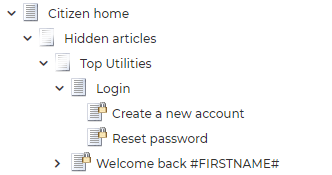
The "Extras" tab in the article holds all of the configuration options for your article. The current article extras for the Authentication template look like this:

| Setting | Description |
|---|---|
| Log out text | When a user is logged in, this text overrides the article heading. If you leave the field blank, the heading will change to "Log out" |
| Welcome article | If a user goes straight to the login article, this is the article they'll be redirected to once they've logged in. if you don't set an article, the default is your site's homepage |
| Default groups | Whenever a user logs in, they'll be added to these groups. The groups you pick here should be the standard groups you want every member to be part of. If you update these groups, users will be added to any additional ones next time they log in. You can't use these settings to remove users from groups |
| Utility articles | These should be articles that display your registration and password reset forms. They'll appear as links on the login page |
| Enabled providers | All of the providers configured in the Authentication worker are listed here. Check the boxes for those you'd like to appear on the login form |
When will users log in?
There are two scenarios that will prompt a user to log in.
Authentication Challenge
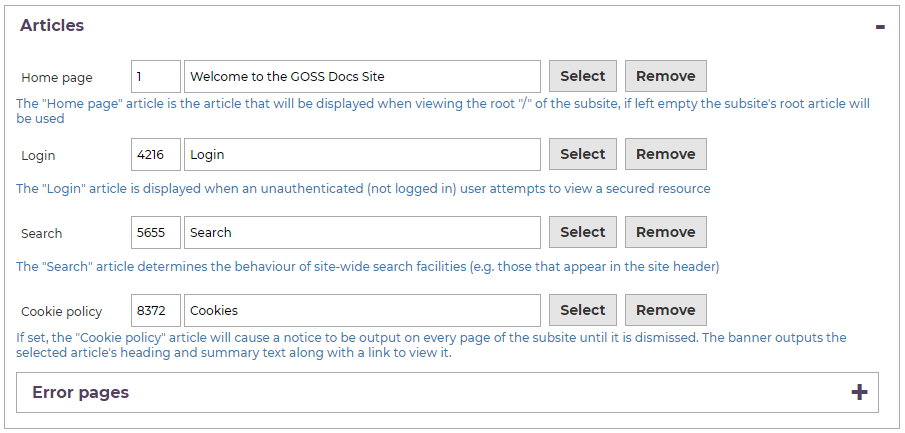
If a non-authenticated user tries to access secure content, they have to log in. The user will be directed to the site's login article, which is set in your subsite settings, and once they've authenticated, they'll be redirected to the secure content they were trying to access.
Upon reaching the secured content the user will either be able to view the content, or be presented with a "Security Denied" message (also set in the subsite settings) should the content be secured to a security group the user is not a member of.
Direct Login
A non-authenticated user may also log into the site by navigating directly to the site's login article. After successfully authenticating the user will be directed to the "Welcome" article in the article extras. If an article has not been set, the user will be directed to the site's homepage.
Subsite settings
When someone who isn't logged in tries to access secured content, they are first directed to your site's login article. This article needs to be set in your subsite configuration:
3. Further reading
You can read more about login and authentication in the following articles:


