
What is Operation Menai Bridge?
Operation Menai Bridge is the name of the plans for what will happen in the United Kingdom after the death of King Charles III.
UK Local Authorities should have a procedure in place for this, which will involve updating their website.
This guide will help you set up a landing page in preparation for this event, or for marking the death of another member of the Royal Family or senior public figure.
Example
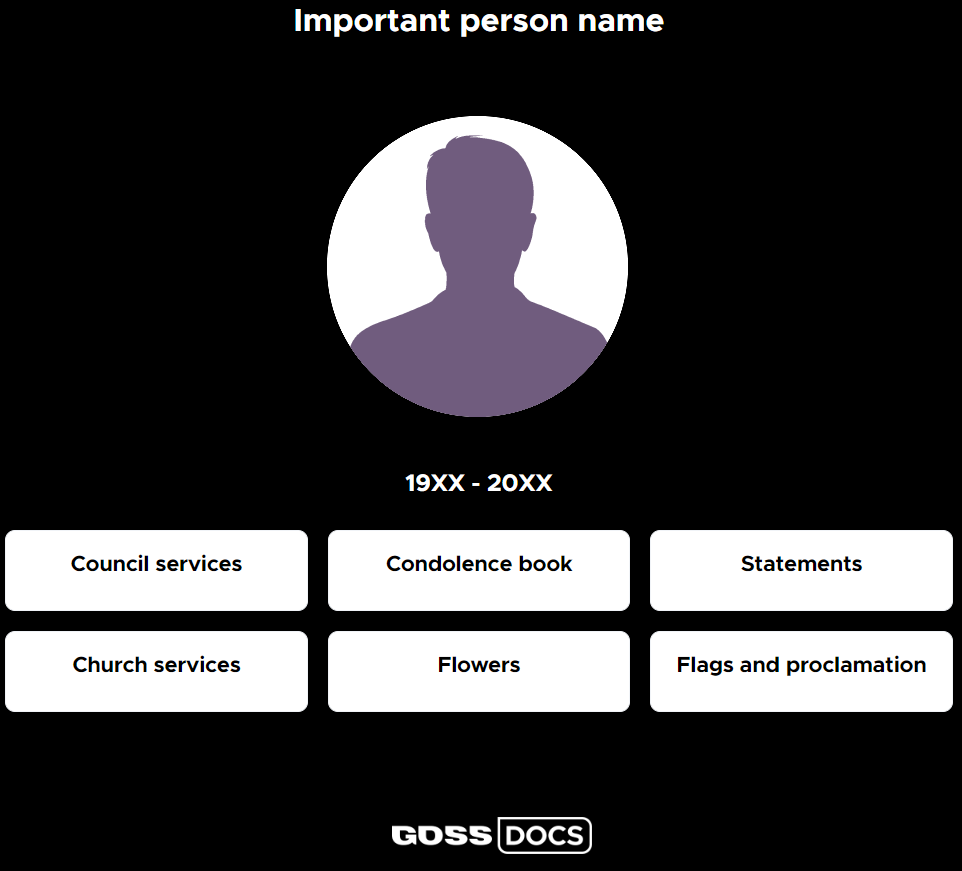
You can see a working example - Operation Menai Bridge example.
Step 1 - Where to create your content
You can create the landing page and content for any senior public figures in advance, and hide them from view until they are needed.
We recommend creating an area under your Hidden Articles section, which is secured so that the public cannot access the pages, but users within your Local Authority could check the content via a site login.
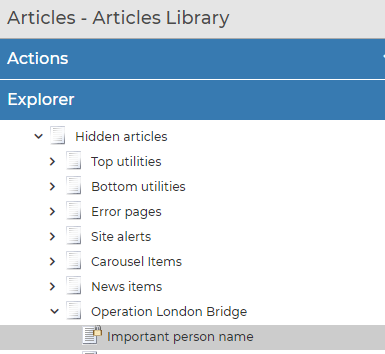
Step 2 - Setting up the template
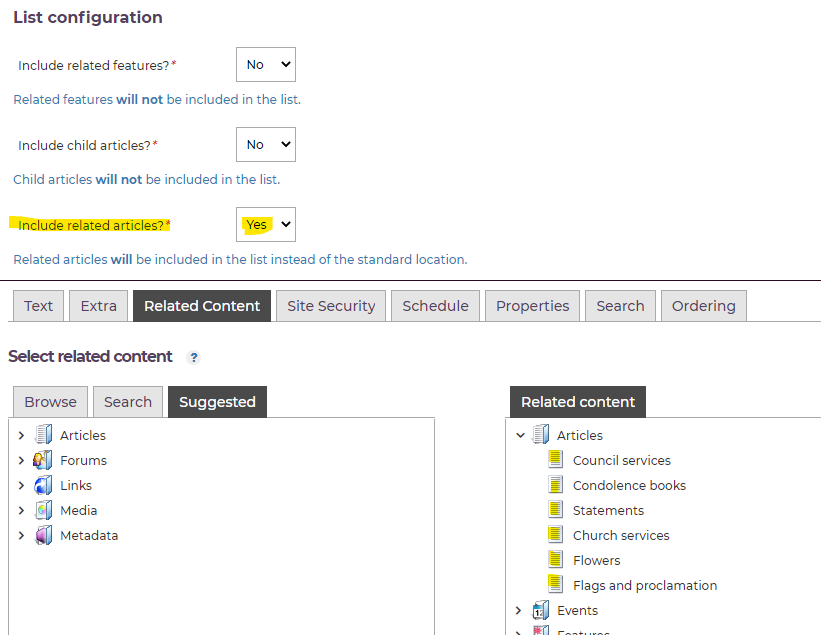
We suggest using the List template as the best layout for your landing page as it will give you the ability to show links to other areas of your site.
We recommend the following settings as they will give you the flexibility to select the articles you want to display on the landing page:
Step 3 - Adding the content
We recommend the following content options:
- the page title is the name of the deceased
- a photograph of the deceased is uploaded to iCM and added to the page
- the year of birth to the year of death of the deceased is added underneath the image as a Heading 2 element.
You are welcome to add extra statements and messages to the body copy but this is the minimum that is required.
Step 4 - Adding the styling
Note: This styling will only work for the standard themes - Chill, Cruise, Command, Dynamic and Impact. Clients with custom themes are welcome to use this as a base to create their own styling.
We have created styling that you can apply to this page to remove all the navigational elements and change the styling to a simple black and white theme.
Download here: Operation Menai Bridge Page CSS Files (ZIP, 2 KB)
Within the zip are two CSS files - one for adding the styling via a script inline and one via the subsite settings as a site skin media item. You can use either method.
As a script inline
You can add the styling directly to the page via the script inline.
- You will need to paste all content from omb-inline.css including the <style> into the inline
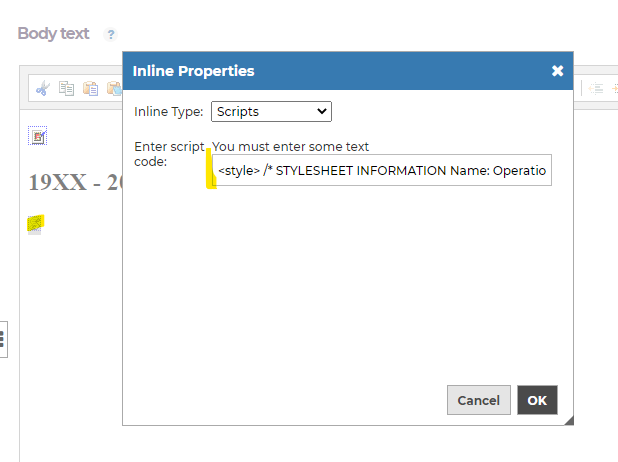
Once you save the page, you should be able to see that only this page has been updated with the styling.
As a site skin media item
You can add the styling via the subsite settings as a media item.
- Edit the omb-icm.css file and add the article ID of your landing page. Perform a find and replace on #NUMBER#
- Upload the CSS file to iCM using the skin media type
- Add newly uploaded skin to your subsite settings:
- Make sure you are accessing iCM using the enterprise link: council.gov.uk/enterprise/icm
- Navigate to Management > Definitions > Subsites > The subsite you wish to update
- Under the Look and Feel section, you will see the Skins section. Pick your new site skin media item
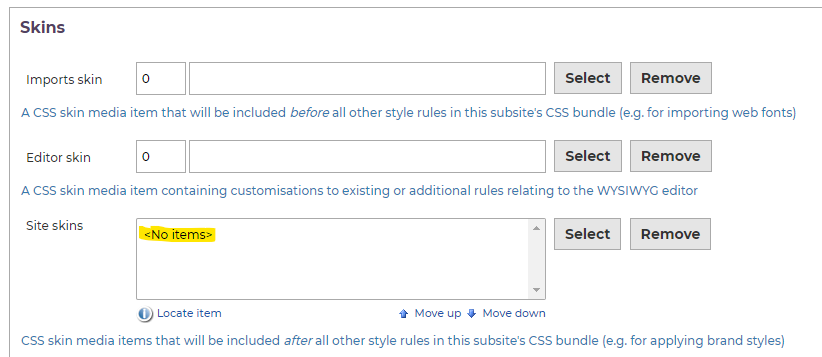
Once you save the subsite, you should be able to see that only this page has been updated with the styling.
Step 5 - Adding links to other content
As mentioned in Step 2, we recommend using the related articles setting for links to other pages in your site as you can add them to the page, regardless of location in the site structure.
Here is a selection of articles you may wish to add to your page:
- Council services page, which is a redirect article to your current live home page
- Condolence books, which can include a form to collect messages of support
- Statements from around the Local Authority
- Church services
- Flowers
- Flags and proclamations
You can prepare these articles in advance and secure them in the same way as the landing page. They will then be hidden until needed.
Step 6 - Changing the site home page
Once the official announcement from Buckingham Palace has been made, you will need to change the homepage of your gov.uk site to your new landing page.
To change your current homepage, do the following:
- Access iCM using the enterprise link eg. council.gov.uk/enterprise/icm
- Make your landing and supporting pages visible to the public by removing the secured status of the articles
- Navigate to Management > Definitions > Subsites > Your gov.uk site
- Under the Configuration tab, you will find the Articles section
- Replace the article that is currently in the Home Page settings with the landing page article

Once you save the subsite, you should be able to see the homepage now navigates to your landing page.
Once the mourning period is over, you can switch back to your original homepage and secure the articles again.
Optional - Updating the Site Alert to black
Note: This styling will only work for the standard themes - Chill, Cruise, Command, Dynamic and Impact. Clients with custom themes are welcome to use this as a base to create their own styling.
This is an optional step that would set your site alert to black in order to add a reflection of mourning throughout the site in case of a somber event.
We have created a CSS file that you can apply to your subsite to make your site alert banner black and all links and text white.
Download here: Operation Menai Bridge Site Alert CSS Files (ZIP, 448 B)
As a media item
You can add the styling via the subsite settings as a media item.
- Upload the CSS file to iCM using the skin media type
- Add newly uploaded skin to your subsite settings:
- Make sure you are accessing iCM using the enterprise link: council.gov.uk/enterprise/icm
- Navigate to Management > Definitions > Subsites > The subsite you wish to update
- Under the Look and Feel section, you will see the Skins section. Pick your new site skin media item
Once you save the subsite, you should be able to see that the site alert is now black with white links and text.


