
Overview
The form used to create job adverts uses the Contribute product to create an article on your website.
When the form is submitted it will need to be approved before the advert is published.
Many of the fields on the form are configurable, or customised using metadata, as described in the Configuration article. Throughout the form the
The following articles describe the form set up to create job adverts in the adult social care sector.
Vacancy Title, Reference, Close Date
The first pages of the form let you enter a vacancy title and optional reference number.
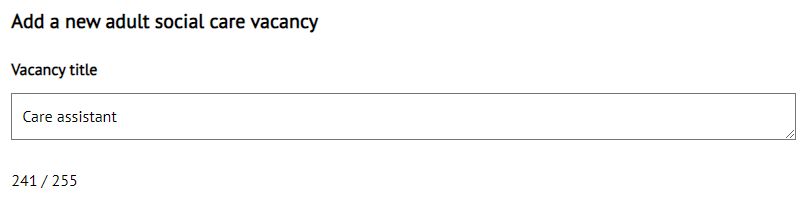
The vacancy title becomes the article heading.
Reference Number
The reference number is optional. If the person creating the advert doesn't have one, the framework will automatically generate one by combining the
Closing Date
The closing date is used as the article archive date.

The advert will be archived at 00:00 (UTC) on the date it is set to close. The archive parent article is set as the
Reminder emails are sent to publishers before an advert is archived.
Salary and Hours
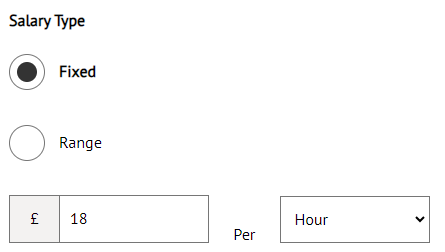
The salary information is used to categorise the role in search results and is displayed on the advert.
Rate

The options in this drop-down are taken from the metadata values of the
Type and Range
You can also set a specific rate per hour, week, month or year:
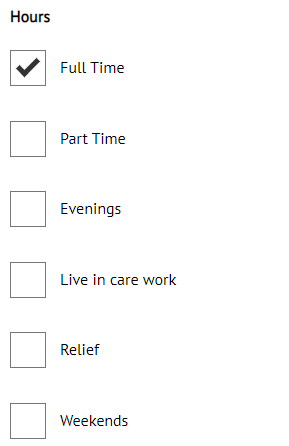
Working Pattern
The working pattern options are taken from the metadata values of the
Driving Licence, Overseas Sponsorship and Categories
These four fields and pages work in the same way. They all display options taken from the metadata values of properties set in the Configuration.
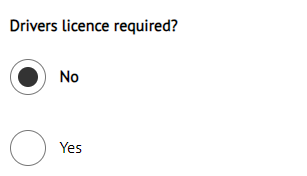
- The driving licence options are taken from the
drivingLicenceMetadataID property - The overseas sponsorship from the
oSLicenceMetadataID property - The vacancy category uses the
categoryMetadataID property - The service type the
servicesMetadataID property
Description and Benefits
The role summary and description use free text fields:
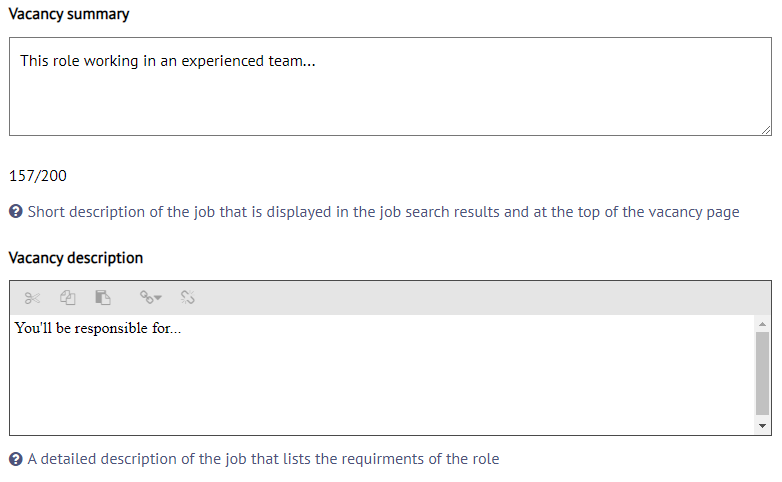
The summary becomes the article introductory text, the description the article body text. See the Job Template article for more information about how these text areas appear.
Benefits
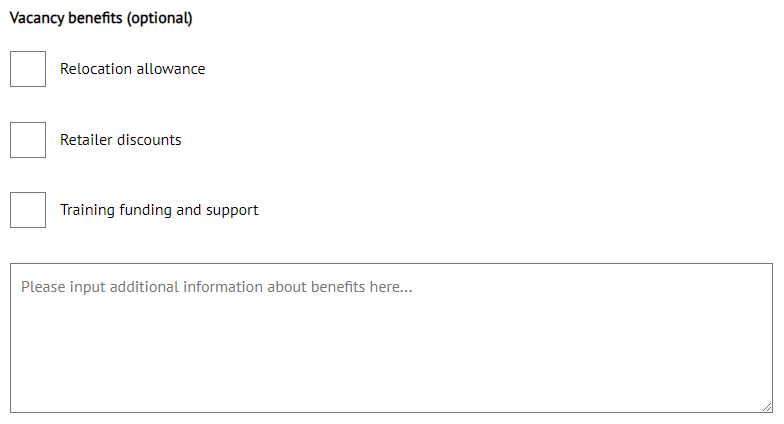
The options in the benefits drop-down are taken from the metadata values of the
The benefits metadata values are related to the job article, so can be used as facets in the job search. The values also appear as a bullet point list along with the free text:
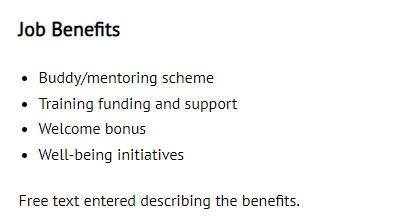
This text area is held in the article extras of the Jobs template. The values and text area are combined into a hidden form field called
Area and Address
The vacancy area and address details are used when searching for jobs.
Area
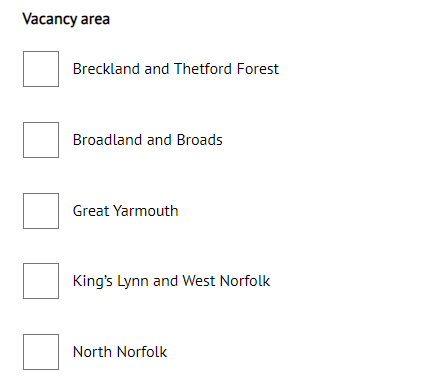
The options in this list are taken from the metadata values of the
They are displayed on the job advert and can be used as facets in the jobs search.
Address
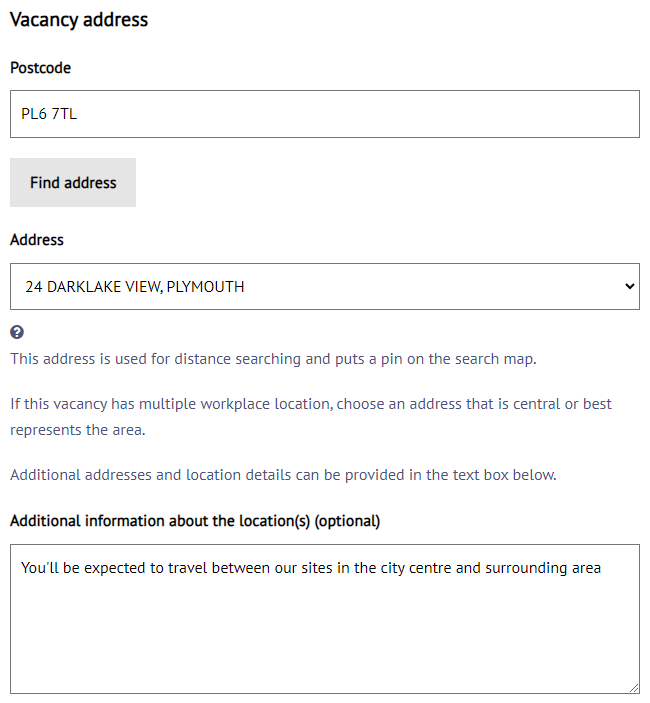
The address you enter here is optional. It's stored in the article extras and will override the employer address if present.
The optional additional information appears on the job advert and is mapped to the
Application Contact
These fields appear as buttons on the job advert.
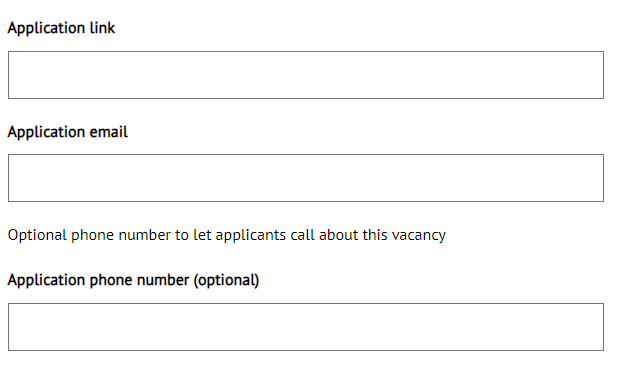
Entering a website URL will link to that site, entering an email address creates a mailto: link. The phone number is optional and creates a tel: link.
All of these details are held in the Job Template article extras.
Document Upload
Up to five documents can be uploaded with each vacancy.
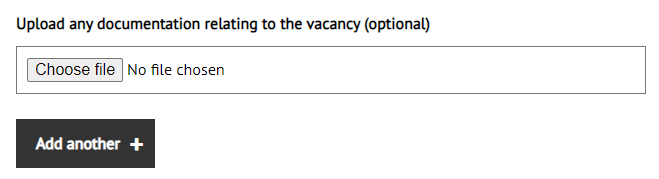
Word or PDF files can be uploaded, and they will be added as related media to the Job Template, so can be downloaded by applicants.
Document uploads can be disabled (ie this page skipped) if the
Check you Answers and Submit
The final page displays a summary of everything that has been entered into the form, with links to go back and edit sections.
It also looks up the organisation associated with the current user, and if one is found will relate the employer contact article to the job advert.
On submit the form starts the "contribute article" workflow process, which will create a task for Approving Content before the advert appears on the site.


