
Case Tasks Introduction

Tasks are separate jobs initiated by a case manager and assigned to another team or individual, or to the case manager themselves to record their own work. They are a formal piece of work that needs to be completed and recorded as part of resolving the case.
Setup
The tasks tab only appears if the case has tasks set up in its Tasks configuration. If a case type doesn't have any tasks defined for it, the tab for the page is hidden.
When you configure your case type, you decide which of the standard tasks (or your own custom ones) will be available to use. These tasks will then appear in the list of tasks to choose from when you press the "Add new task" button.
The following pages cover the steps used to start and assign a task, and any standard task behaviour.
Some of the standard tasks we have created are documented in the Plugins section, and there's information about creating your own tasks in the Creating Custom Tasks article.
Case Tasks Page
The tasks section of a case displays a list of all the current tasks.
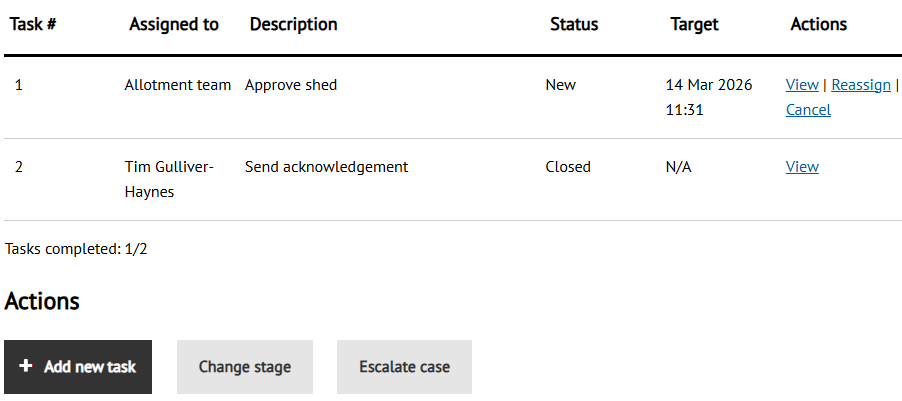
As tasks are created they are numbered sequentially. each shows:
- The task description, which can be set by the case manager when they create a task, or use the default set in the configuration for this case type
- A task's status, which will either be "new", "cancelled" or "closed", depending on the state of the workflow started by the task
- The target SLA of the task, which is either the default set in the case configuration, or may be set by the case manager when creating the task
- A "View" link to display a summary of the task as it currently stands - this view will depend on the type of task being performed
- You may also get the option to cancel or reassign a task, depending on how it has been configured
A case cannot usually be closed while there are outstanding tasks. This can be overridden using the closeCase API.
Creating Case Tasks
All tasks are created in a similar way, by pressing the "Add new task" button.
Task Type
Pick the type of task you want to create.
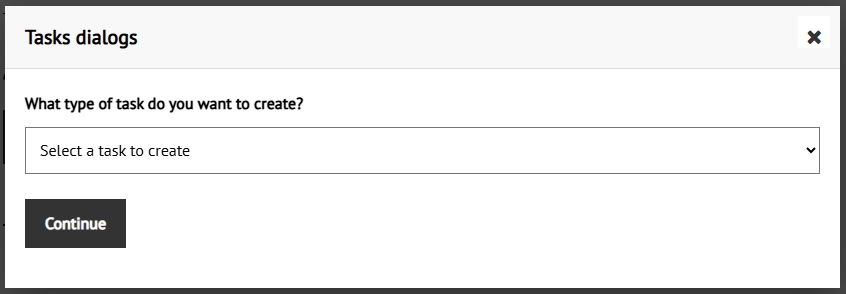
The drop-down field lists all of the task types that have been configured for this case type.
The names of tasks and the order they appear in can be set in the Tasks configuration.
Pre-Requisites
In the case configuration for tasks you can set:
- The minimum time a task must be completed before the case can be closed
- The maximum number of times a task can be performed
- Whether a task can only be created once another task has been completed (in which case it won't appear in the list until the required task has been done)
Tasks Assigned to the Case Manager
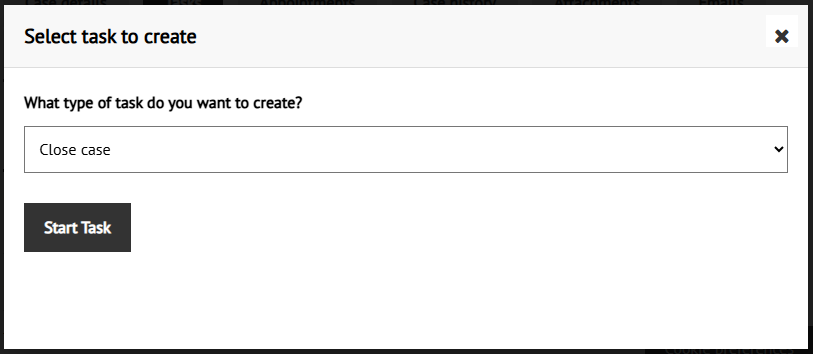
Tasks can be configured so that they are automatically assigned to the current case manager. If that's true, and none of the options described below can be customised (eg the task has a default/no SLA) you'll see a "Start Task" button, which will skip all of the steps below and immediately launch the task:
Assignment
This step is optional, depending on the case configuration for this task.
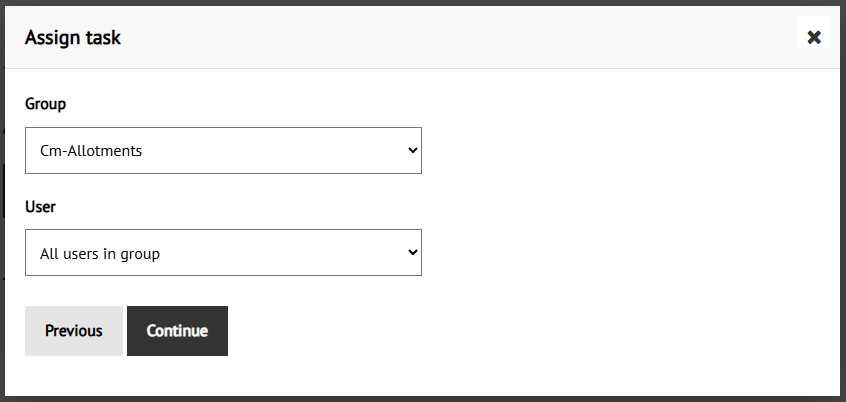
The task could be assigned:
- Automatically to the person creating the task (ie this page options won't appear)
- As a claimable task for all users in a group
- Directly to a user
If assigning to other users, the Group drop-down lists all of the configured groups, the User drop-down the users in your chosen group.
In the task configuration you can set whether or not emails will be sent to the group/user when the task is created for them.
Task Details and Attachments
This section lets the case manager customise the information sent to the task user. The name and description can be edited, and the case manager can choose which attachments to pass to the task.
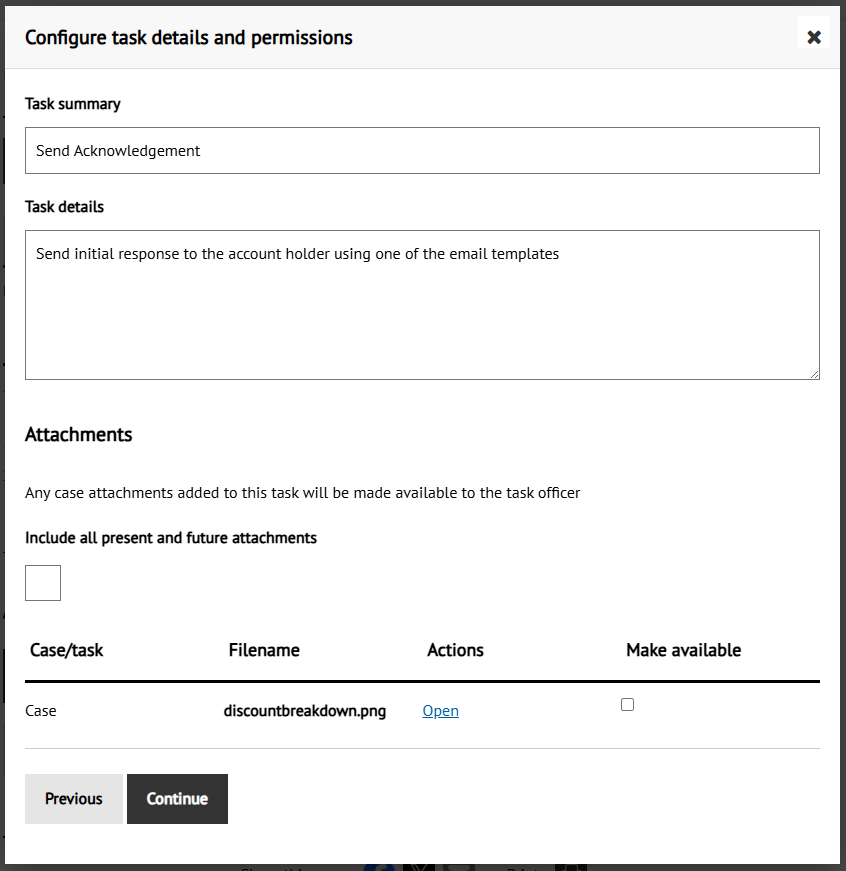
All of the fields on this page are optional - they will only appear if you have enabled them in the case configuration for this task. If not, the default task name and summary are used, and attachments and full case details won't be able to be sent to the task.
SLAs and Targets
This page is optional. It will only appear if the case configuration for this task allows the case manager to override task SLAs. If not, the configured task SLAs are used.
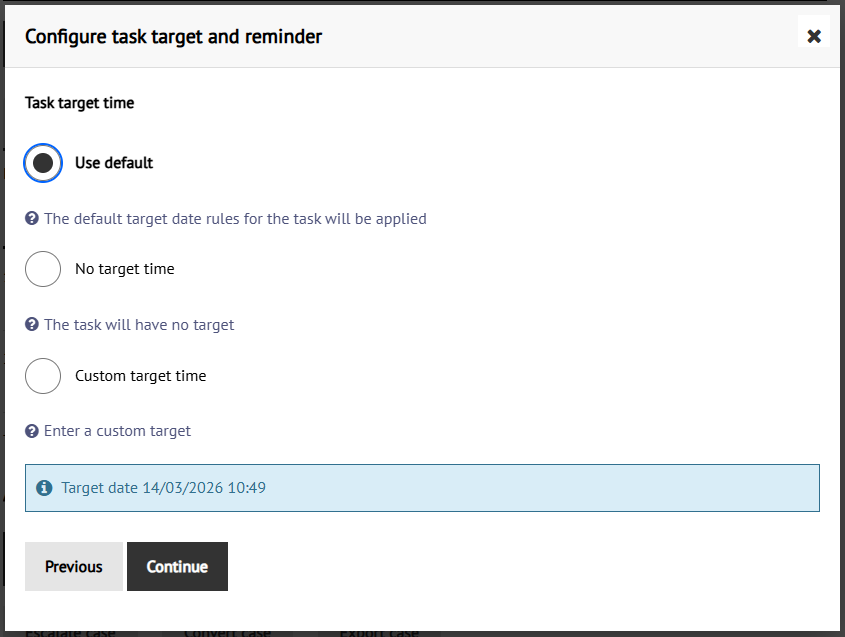
The case manager can choose to remove the target time, or set a custom time in days or hours.
Reminder emails may also be sent to the case manager about tasks approaching, or those that have breached, SLA. The timings of these emails are set in the case configuration for this task and can't be adjusted here. If a reminder hasn't been set there, it's not possible to add one.
Automatically Generated Tasks
Cases can be set up to automatically generate tasks for users as soon as a case is raised. The name of the task and the group it should be assigned to are set in the task configuration.
Tasks can also be generated conditionally, based on the presence of a process variable when the case management workflow starts. See the Task Configuration article for more information.
Reassigning or Cancelling Case Tasks
In the task configuration you can set whether a task can be cancelled. If a task has valid users or groups, it can also be reassigned.
Cancelling Tasks
Some tasks can be cancelled by a case manager. This is set in the task configuration section of the current case type.
In the task actions column, press "Cancel" to load the cancel dialog:
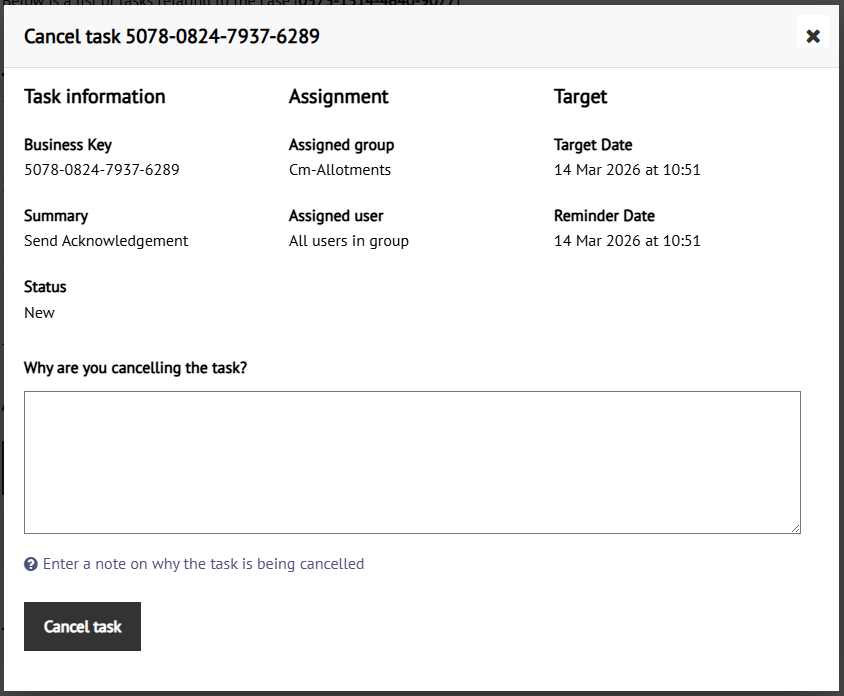
This displays a summary of the task and lets the case manager enter a reason for cancelling.
When a task is cancelled a private note is added to the case history. Cancelled tasks remain in the tasks table in the same way as a completed task. An email is sent to the user the task was assigned to informing them that it has been cancelled.
Reassigning Tasks
If a task has eligible users, ie it is not a task that was assigned directly to the case manager, it can be reassigned.
In the task actions column, press "Reassign" to load the reassign dialog:
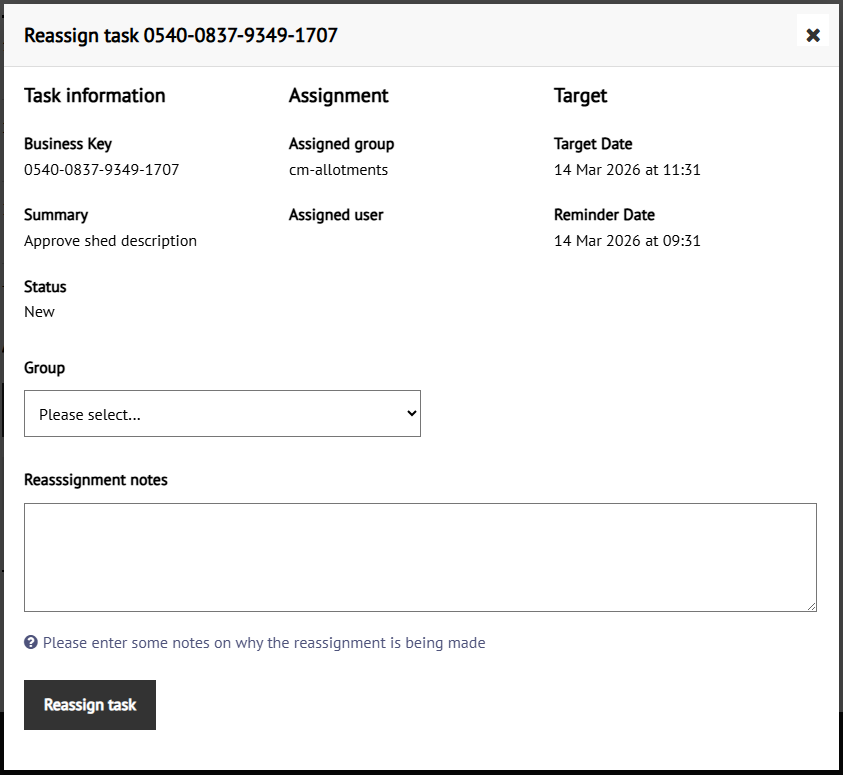
Select the new group and/or user in exactly the same way as when the task was created. Emails will be sent if configured to do so (in the same way as creating new tasks).
Reassigning a task adds a private note to the case history with the new group/user and reason.


