
Conversation Task Overview
This task requires additional setup and configuration in your hosting environment before it can be used. Talk to your account manager if you'd like to find out more.
This task is used to send and receive emails which are recorded in the task as a conversation thread.
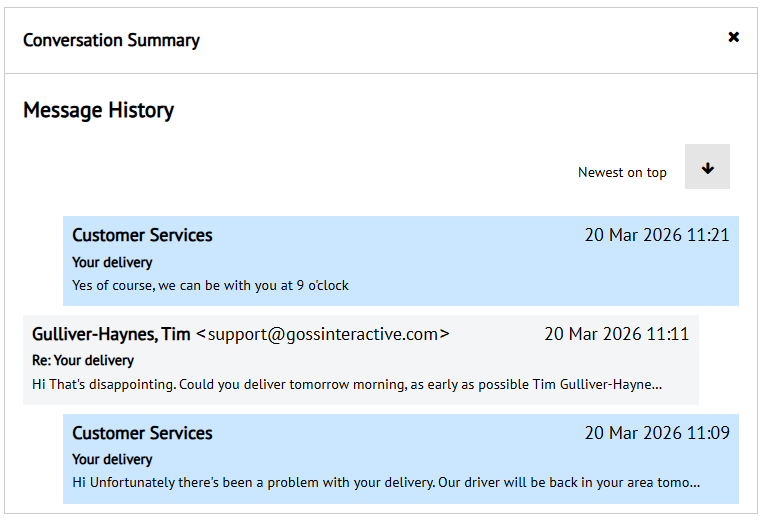
The task can be set up to contact the person who raised the case, an address or user group chosen from a list of presets, or with a free "to" field. The emails sent from the task can use a range of templates, and include attachments.
All of the messages and files sent and received during the task can be viewed from the case, and when the task is completed a final note can be passed back to the main case history.
Sensitive Data
As with all emails, be careful using this task to send sensitive, personal or secure information.
Video
This video demonstrates the task being used.
Using the Conversation Task
Adding the Task to your Case
When working on a case, open the Tasks tab and press the "Add new task" button.
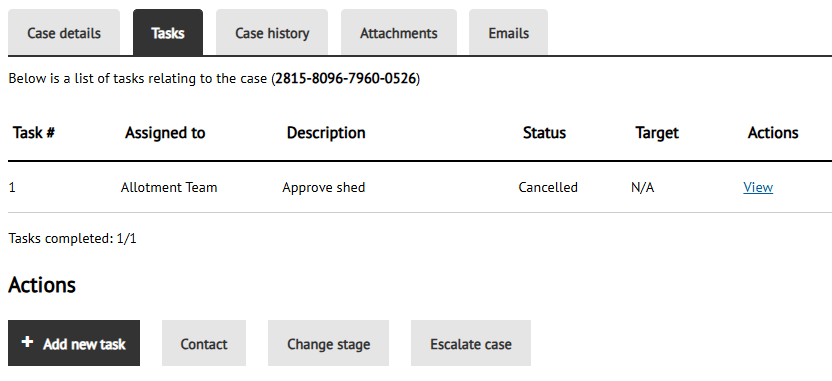
On the next page, find the email task from the list, then complete the form to add the task to your case.
The options you see when when adding a task will depend on how the task has been configured. Creating case tasks has more information about these standard Case Management steps.
Sending Emails
Once the task has been created and assigned, the task user can send the first email.
Contact Options
The first time the task is used, the contact needs to be set. Use the contact drop-down to choose the recipient:
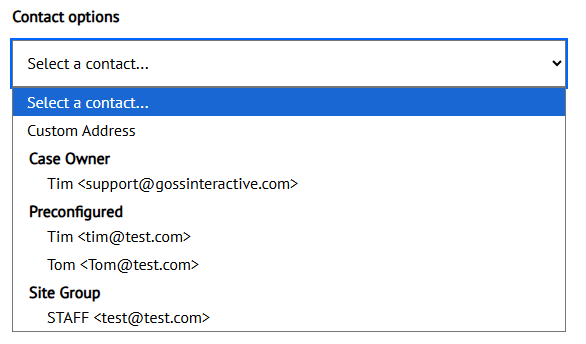
The items in this drop-down are set in the configuration. The screenshot above shows every possible option. They are:
- Custom - Manually enter an email address
- Case Owner - Email the person who raised the case
- Preconfigured - Pick an email address from one of the presets
- Site Group - A user group mailbox
Only a single address can be chosen, and once it has been set it can't be changed during this conversation task.
Templates
You can optionally prefill the subject and message body by picking one of the configured templates.
Subject and Body
Enter the subject and body of the email. Any text added using a template can also be edited.
Attachments
Use this section to add attachments to the email.
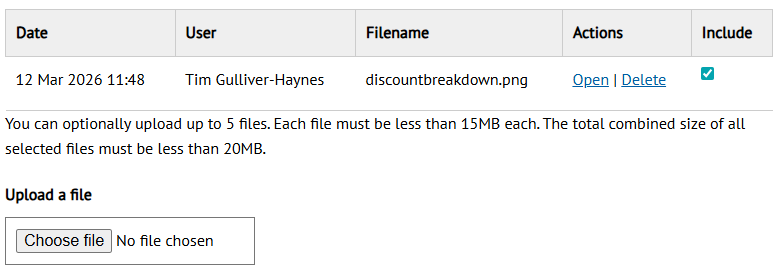
In the task configuration you can choose whether or not files that have been added to the parent case will be available in the task. If they are, they will be listed here.
New files can also be uploaded and attached. Any files uploaded here are also available in the attachments list of the parent case.
Files uploaded as part of this task can be deleted from the list of attachments (they will still be available in the message thread once they have been sent). This will also delete them from the parent case's attachments tab. Once the task has been closed, any attachments uploaded as part of the conversation cannot be deleted.
Attachment Limits
The attachments added as part of this task count towards the limit set in the case's Attachments configuration. Once this number has been reached the "upload" field will be hidden.
Reminders
Reminders are automated follow-up emails sent out to the contact if they do not reply to a message. Set the reminder email time in hours or days, or leave blank to not set a reminder.
The reminder email sent uses the "Send Reminder" email template.
If you send a new message with a new reminder time, or without one, before a reply to a previous reminder has been received, the existing reminder is cancelled.
Message Thread
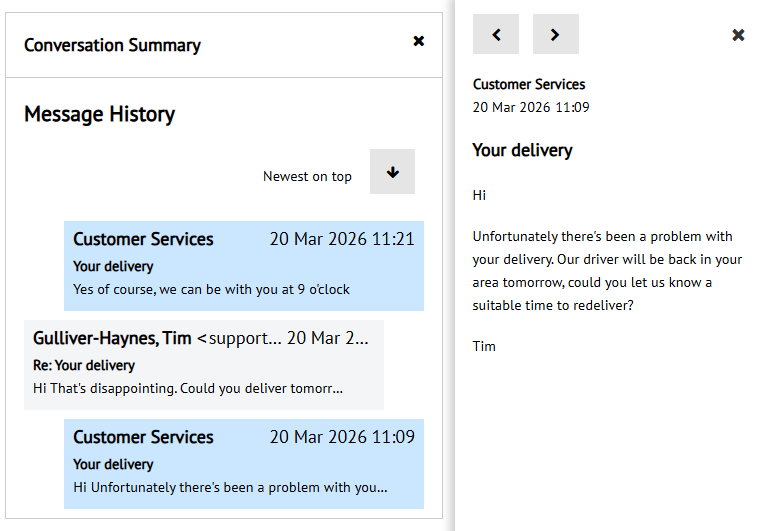
The message thread displays the emails exchanged in the conversation so far.
Each message includes:
- The name of the person who sent the message
- The email address the reply came from
- The date and time of the message
- The subject line
- The first line of the message
Click on a message in the thread to view the full email, including any attachments.
Actions
While working on a task, the following may be available.

- Send Message - Sends the email to the contact
- Complete Task - Closes the task
- Cancel Task - Cancels the task
- Close - Close the current view without saving any changes
Completing Tasks
When you complete a task the note you add will be logged to the history of the task and into the main case history. The note can be private (only visible to users working on the case) or public (also visible to the user who raised the case).
The completed task can be viewed from the task list in the parent case. The full message thread, attachments, and task history can be seen. Additional notes can also be added to the task history.
You can optionally send an email to the task contact, which will use the "Task Complete" template.
Cancelled Tasks
When a task has been cancelled any messages and attachments are still visible from the task list in the parent case. Cancelling a task does not send an email to the contact.
Replying to the Conversation Task
Users reply directly to the emails sent by the task, and they are logged as part of the conversation.
The emails sent from the task will be sent from the "From address" of the parent case type (set in the Setup and Naming configuration). They also have a "reply-to" address, generated automatically as each email is sent. These unique addresses are how replies are routed to the correct task and message thread.
Replies
The email can be replied to in the same way as any other email. The subject, email body, and any attachments, are added to the message thread.
Automated Emails
When a reply is sent an automated response confirms that it has been received which uses the "Response Accepted" template. An email is also sent to the task user (or case manager) notifying them that there's been a reply using the "Response Received" template.
Failed Replies
Replies won't be logged in the task in the following situations:
- The task is closed
- An incorrect reply-to address
- An expired reply-to address token
- Multiple "To" or "From" addresses are added to the email
The person sending the email will receive an automated response using the "Response Rejected" template if there has been a problem, and if possible, a note will be added to the case history.
Address Token Expiry
The "reply-to" address includes a unique token which is used to route the reply to the relevant task. This token expires one month after the email has been sent. New tokens are generated for each email sent.
Conversation Task History and Automated Emails
As the task is carried out, the following emails and history notes are generated.
History
n/a indicates no note is added to that history.
| Action | Task History Note | Case History Note | Public/Private |
|---|---|---|---|
| Task started | New <task name> | New task created for staff member, <task name> | Private |
| Email sent | Message sent to contact at <email address> with no attachments | n/a | Private |
| Message sent to contact at <email address> with <filename> | n/a | Private | |
| Email received | A reply has been received | n/a | Private |
| Notified contact that their response has been received | n/a | Private | |
| Attachment uploaded | Attachment <file name> uploaded | Attachment <file name> uploaded | Private |
| Attachment deleted | Attachment <file name> deleted | Attachment <file name> deleted | Private |
| Update added to task history | Note from staff: <the note> | Note from staff: <the note> | Can be set when the note is added |
| Task completed | <task name> completed | Task completed by staff | Can be set when the note is added |
| Task complete email sent to contact | Sent task completion notification to contact | n/a | Private |
| Note added when task completed | Note from staff: <the note> | Note from staff: <the note> | Private |
| Task cancelled from task list | n/a | Task cancelled by case manager: <note> | Private |
| Task cancelled from within the task | <task name> cancelled | <task name> cancelled | Private |
Emails
The emails sent to and from the task as part of the conversation are visible in the message thread. Emails sent from the task are also available in the parent case's email list (replies are not).
The following automated emails are also sent by the task. Their templates are set up in the Comms Manager and found in the "Case Management - Tasks" application.
| Template | When it's sent | Example |
|---|---|---|
| Response Accepted | Sent to the contact when they reply to an email | <p>Dear {{form_CONTACTNAME}},</p> |
| Response Received | Sent to the user the task is assigned to, or the case manager if the task is unassigned, when a reply is received. If both the task and case are unassigned, the email is sent to the default address in the configuration | <p>A response has been received for a task you are assigned to, or an unassigned task on a case you are assigned to. The task reference is {{form_BUSINESSKEY}} and the case reference is {{form_CASEBUSINESSKEY}}.</p> |
| Response Rejected | Sent as a reply to anyone who attempts to send a message to an invalid address. An address may be invalid because the task is closed or because the token element of the reply-to address has expired | <p>We have received an email request to add a response to a case from this account, however it has unfortunately not been possible to process this.</p> |
| Send Question | Sent when an email is sent to the contact | This boilerplate generates the email from the task. The email body written by the task user is inserted into the <p>This is a request for information for case {{form_CASEBUSINESSKEY}}, your reference for this conversation is {{form_BUSINESSKEY}}.</p> |
| Send Reminder | Sent to the contact if they don't reply to an email within the reminder time period | <p>Dear {{form_CONTACTNAME}}</p> |
| Task Complete | Optionally sent to the contact when the task is completed | <p>Thank you, we have now updated case {{form_CASEBUSINESSKEY}} with the details you have provided. Any further responses for conversation {{form_BUSINESSKEY}} will not be processed.</p> |
Conversation Task Configuration
Global Configuration
To make the task available to Case Management, add its name "emailconversation" to the list of tasks in your Environment Configuration.
Two task specific settings also need to be added:
| Property | Description |
|---|---|
| emailConversation_DefaultNotificationRecipientEmail | If a task and case are both unassigned when a reply is received, this email address will be notified |
| emailConversation_ReplyToDomain | The domain used to handle responses, for example "cases.gossinteractive.com". This will be combined with a unique token and become the reply-to address of the email (the from address is the same as that set for the case type). This will need to be an Amazon SES verified domain |
Example
"taskConf": {
    "availableTasks": [
        "multipurpose",
        "boilerplate",
        "emailconversation"
    ],
    "emailConversation_DefaultNotificationRecipientEmail": "[email protected]",
    "emailConversation_ReplyToDomain": "cases.gossinteractive.com"
}
Task Configuration
As well as the standard Tasks configuration (it's name, who it is assigned to, SLAs, whether the task can be cancelled etc) the following can be set:
| Setting | Description |
|---|---|
| Available recipient addresses | These options appear when carrying out the task for the first time, and make up the "Contact options" drop-down Pick from:
|
| Available templates | If any templates have already been created, they will be listed here. Select the ones that should be available in the task. Press "Create new template" to add more. New templates need a name (visible in the task), a subject line (plain text) and message body as HTML |


