
Emails and Notifications
Case Management can send notifications to users at various points during a case. You have control over which emails get sent and the templates they use in the configuration for your case.
When are emails sent?
The full list of when emails are sent can be seen in the Standard Templates article. If a template doesn't exist for a particular situation, the email won't be sent. Individual templates can also be toggled on/off when you edit them.
Who are they sent to?
Emails, and the templates used, follow these general principles:
- If the person who raised the case was logged in, they receive emails using the "Citizen" set of templates
- If the person who raised the case was not logged in, they receive emails using the "Anonymous" set of templates
- If the case is assigned to a case manager (ie the task has been claimed), emails are sent to them using the "Case manager" set of templates. Emails are not sent to any other staff members
- If the case is not assigned to one user, emails are sent to the members of the group of case managers eligible to work on the case instead. These emails use the "Case group" set of templates (the one exception to this is when a case is first raised, this email uses the "Case manager" template)
- If the website user group of case managers has a dedicated email address, emails will be sent to that mailbox instead of each user in the group
Case Manager Group Email Toggle
This is a legacy configuration option. We generally recommend the setting is set to "Yes" and the sending of emails controlled at the template level.
In the "Advanced - Setup and Naming" section of your case configuration is a global switch to disable emails from being sent to the relevant case manager group when a case is opened, reassigned or closed.
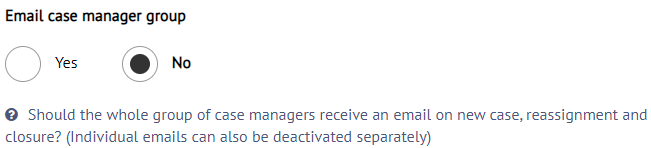
If this option is set as "No" then emails will not be sent, even if set to at the template level.
Email Address Visibility
Emails sent out from Case Management use the "from" address set in the "Advanced - Setup and Naming" section of your case configuration.
When notifications are sent to groups of staff users, for example when a new case is raised, the "Hide email addresses" setting in the Setup and Naming section lets you choose whether all of the email addresses appear in the "to" field, or if they are sent "bcc".
Editing Email Templates
Email templates are set up individually for each of your case types.
Open the Configuration Manager (normally found at your website address /config), open Case Management, then the case type you'd like to configure.
Email Categories
The "Email content" section lists all of the categories of email that can potentially be sent during a case.

Email Templates
Within each category the various versions of the email templates are shown.

Editing Templates
Each template can be edited, and the sending of the email can be toggled on/off.
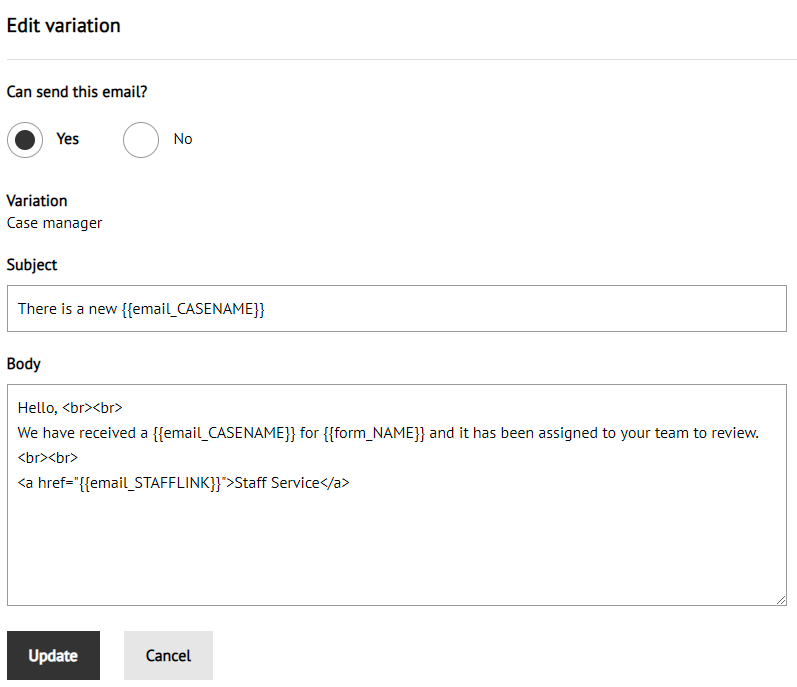
There's more information about the tokens you can use in emails in the Email and Task Title Tokens article.
Creating Templates in the Comms Manager documentation describes the allowed HTML elements and attributes. You can also add additional elements and attributes to the allowed list in your Environment Configuration.
GOV.UK Notify
By default, templates are written in HTML, like the image above, and are sent using the platform's Email worker. If you subscribe to the GOV.UK Notify service, and have purchased the GOSS GovNotify Connector (worker), you can switch your templates to use Notify instead. Notify is enabled in the Comms Template Manager - there are no additional settings in Case Management. The change is universal and all of your templates will have to be written using Markdown and go via GOV.UK Notify. See Edit Variant - Markdown with GOV.UK Notify.
Standard Templates
This is the list of standard email templates and their variations. If a variation doesn't exist, emails won't be sent to that user/group.
If a case is assigned to a case manager, they will receive an email using the "Case manager" template.
If a case is not assigned, the group of case managers eligible to work on the case will be emailed using the "Case group" template. Emails will be sent to each member of the group, unless the website user group has a dedicated email address, in which case emails will be sent to that mailbox instead.
| Template | Variations | Description |
|---|---|---|
| All tasks completed | Case manager | Sent to the case manager when all current tasks have been completed. Each time a task is completed a check is made to see if it was the final task, if so, the email is sent. For example, if a case has three tasks, when the third is completed an email will be sent. If a fourth task is added later, when that task is complete the email will be sent again (assuming a fifth hasn't been added in the meantime!) |
| Appointment cancelled | Anonymous, Citizen | Sent to the user who raised the case if an appointment is cancelled |
| Appointment created | Anonymous, Citizen | Sent to the user who raised the case if an appointment is created |
| Appointment updated | Anonymous, Citizen | Sent to the user who raised the case if an appointment is updated |
| Assign case | Case group, Case manager | Sent to the new case manager (if assigned directly) or group when a case is reassigned to them |
| Assign task | Task group, Task officer | Sent to task users when a task is assigned to them |
| Cancel task | Task officer | Sent to the assigned task user if the task is cancelled |
| Case target breached | Case group, Case manager, Escalation staff | Sent to the current case manager (if assigned) or case group (if unassigned) and all staff in the escalation group when a case's target SLA is breached |
| Case target reminder | Case group, Case manager | Sent when the SLA reminder date/time is reached |
| Close case | Case group, Case manager, Anonymous, Citizen, Subscriber | The email sent when a case is closed. These templates are fairly generic and will have the "Closure templates" (below) inserted into them using the tokens |
| Closure templates | Default | Content sent when a case is closed (some case types may have more variations). These aren't sent directly, but inserted into the "Close case" emails in the section above |
| Contact details updated | Anonymous, Case manager, Citizen | Sent when the name, address, email or phone number in the contact details section of a case is updated (when an email address is changed, the email is sent to the new address). The case manager is emailed if details are changed via a different user after finding the case via case search |
| Escalate case | Escalation staff | Sent to all staff in the escalation group when a case is manually escalated by a case manager |
| New case | Anonymous, Citizen, Case manager | Sent when a new case is raised. Note that the "Case manager" template is used for group emails, there is not a "Case group" template |
| Nothing from citizen | Case manager, Task officer | Sent to a case manager who has asked a question to the person who raised the case and no reply has been received within the set time |
| Question for citizen | Anonymous, Citizen | Sent to the user who raised the case when a case manager contacts them |
| Response from citizen | Case manager | Notifies the case manager that they have had a response to a question |
| Task target breached | Case manager | Sent to the case manager who created a task if the target they set is breached |
| Task target reminder | Case manager | Sent to the case manager who created a task if the task target time is approaching and no response has been received from the task user |
| Updated by citizen | Case group, Case manager | Sent to the case manager (if the case is assigned) or group (if the case is unassigned) when the user who raised the case adds a note to the case history |
| Updated by staff | Case group, Case manager | Sent to the case manager (if the case is assigned) or group (if the case is unassigned) when another staff member adds a note to the case history, for example after finding the case via the search |
| Waiting for citizen | Anonymous, Citizen | Sent to the user who raised the case if they don't respond to a request for info within the set time |
Email and Task Title Tokens
Tokens starting
Those starting
Case Related Tokens
Case Type
These tokens are set on the form used to raise a case, which means their values can also be set dynamically on that form.
| Token | Description |
|---|---|
| form_CASEMANAGER | Optional override to dynamically set the case manager user group, eg "CM-FEEDBACK-MANAGER-HOUSING" |
| form_CASESUBTYPE | Optional additional text for case sub type, eg "Housing"" |
| form_CASESTAGE | System name for the starting case stage, eg "stage1" |
| form_CASETYPE | System name for case type, eg "complaint" |
| form_LANGUAGE | Two letter language code used for form and display selection, eg "EN" |
| form_SERVICEREQUESTTEXT | The static card title in User Requests, eg "Complaint" |
| form_VERSION | System code for form and end point versioning, eg "v1" |
User Details
These tokens hold the names and contact details of the person who filled out the starting form and may be used in the Case Details staff form.
| Token | Description |
|---|---|
| form_ADDRESSTEXT | Postal address as entered on initial form, eg "1 Road, Town. AB1 2CD" |
| form_EMAILADDRESS | Email as entered on initial form, eg "[email protected]" |
| form_NAME | Applicant's name as entered on initial form, eg "Mr Smith" |
| form_ONBEHALFOFEMAILADDRESS | Applicant's email when initial form completed by someone else |
| form_ONBEHALFOFEMAILPHONENUMBER | Applicant's phone number when initial form completed by someone else |
| form_ONBEHALFOFNAME | Applicant's name when initial form completed by someone else |
| form_PHONENUMBER | Phone number as entered on initial form, eg "0123 456789" |
In Progress Cases
These tokens hold information about a case once it has started.
| Token | Description |
|---|---|
| form_APPDATESTR | The appointment date as a string, eg "16/04/2019 12:54" |
| form_APPDEPTNAME | The department name for appointments, eg "Waste Services" |
| form_ASSIGNNOTES | The notes added when the case was reassigned |
| form_ASSIGNREASON | The reason for case reassignment |
| form_BUSINESSKEY | Business key for the case, eg "1234-5678-9012-3456" |
| form_CASECLOSENOTES | Notes added when the case was closed |
| form_CASECLOSEREASON | The reason for the case closure |
| form_CASEREMINDERDATE | The current reminder date, ISO format, eg "2019-04-16T12:54:00.702Z" |
| form_CASEREMINDERSTR | The current reminder date as a string, eg "16/04/2019 12:54" |
| form_CASESUBTITLE | Subtitle displayed in User Requests underneath the main description |
| form_CASETARGETDATE | The current target date, ISO format, eg "2019-04-16T12:54:00.702Z" |
| form_CASETARGETSTR | The current target date as a string, eg "16/04/2019 12:54" |
| form_CASETYPENAME | Display name for the case type |
| form_CASETYPEDESC | Tokenised display name for the case type, defaulting to the regular version |
| form_CASESUBTYPENAME | Display name for the case subtype |
| form_CASESUBTYPEDESC | Tokenised display name for the case subtype, defaulting to the regular version |
| form_CASESTAGENAME | Display name for the case stage |
| form_CASESTAGEDESC | Tokenised display name for the case stage, defaulting to the regular version |
| form_CLOSEDATE | Date case closed, ISO format, eg "2019-03-19T14:22:17.447Z" |
| form_ESCALATIONNOTES | Notes added when the case was escalated |
| form_ESCALATIONREASON | The reason for the escalation |
| form_INITCASESTAGE | Case stage as at beginning of case |
| form_INITCASESUBTYPE | Case subtype as at beginning of case |
| form_INITCASETYPE | System code for case type as at beginning of case |
| form_QUESTION | Used in the email to staff after a question has been answered - the original question |
| form_RESPONSE | Used in the email to staff after a question has been answered - the response |
| form_STARTDATE | Date case started, ISO format, eg "2019-03-19T12:54:00Z" |
| form_STATUS | Brief case status, eg "New", "Open", "Closed" |
| form_UPDATENOTES | Used in the email to staff after a user adds an update to their case (via case history) - the text of the update |
Task Related Tokens
These tokens can be used in the emails sent when tasks are created for other users. These tokens may not always be populated.
| Token | Description |
|---|---|
| form_CASEBUSINESSKEY | Business key for the parent case |
| form_STATUS | Task status, eg "New", "Open", "Closed", "Cancelled" |
| form_TASKBUSINESSKEY | Business key for the task |
| form_TASKCANCELNOTES | Notes entered when a task is cancelled |
| form_TASKDETAILS | More info about task (can be entered by the case manager) |
| form_TASKGROUP | Group name assigned to task |
| form_TASKNAME | The name of the task |
| form_TASKSUMMARY | Brief summary used for self-service (can be entered by the case manager) |
| form_TASKTARGETSTR | The task target date/time in string format |
| form_TASKTYPE | System code for task |
| form_TASKUSER | User name assigned to task |
Email Only Tokens
These dynamic tokens are only available when sending emails. Their values are generated at the point the email is going to be sent.
| Token | Description |
|---|---|
| email_ACTIONCHECK | Verification for anonymous authentication (use after email_ACTIONSINGLE) |
| email_ACTIONREQUEST | Query string for performing user requests action, eg "?taskid=" + taskId |
| email_ACTIONSERVICE | Query string for performing self-service action, eg "?action=performtask&taskid=" + taskId |
| email_ACTIONSINGLE | Query string for performing single (anonymous) task with case, eg "?bk=9004-4763-9236-6283" |
| email_ACTIONTASK | Query string for performing task item action, eg "?bk=9004-4763-9236-6283" |
| email_ACTIONVIEW | Query string for viewing item (auth), "?view=9004-4763-9236-6283" |
| email_ANONLINK | URL path (article ID or friendly URL) for anonymous-view user form. The value is ultimately set in your Environment Configuration, but can be customised per case type using the Email Links configuration |
| email_ANONROOT | Root of URL for anonymous subsite (normally same as email_CITIZENLINK) The value is ultimately set in your Environment Configuration |
| email_ASSIGNGROUPFULL | Currently assigned case management display group name |
| email_ASSIGNGROUPNAME | Currently assigned case management system group name |
| email_ASSIGNREASONDESC | Reason for case assignment |
| email_ASSIGNREASONGROUP | Optional category group for assignment reason |
| email_ASSIGNSTART | Date and time when latest assignment started, eg "16/02/2019 09:55" |
| email_ASSIGNSTART_DATE | Date when latest assignment started, eg "16/02/2019" |
| email_ASSIGNSTART_TIME | Time when latest assignment started, eg "09:55" |
| email_ASSIGNUSERFULL | Currently assigned case manager's display name |
| email_ASSIGNUSERNAME | Currently assigned case manager's system username |
| email_CASEBUSINESSKEY | Business key for the case, as provided by endpoint call |
| email_CASEHISTORY | History labelA, eg "Case Management - Feedback" |
| email_CASENAME | Case type name (with subtype if used), eg "Feedback - Rehousing" |
| email_CASESTART | Date and time when case started, eg "14/02/2019 09:54" |
| email_CASESTART_DATE | Date when case started, eg "14/02/2019" |
| email_CASESTART_TIME | Time when case started, eg "09:54" |
| email_CITIZENLINK | URL path (article ID or friendly URL) for site User Requests article. The value is ultimately set in your Environment Configuration, but can be customised per case type using the Email Links configuration |
| email_CITIZENROOT | Root of URL for public subsite. The value is ultimately set in your Environment Configuration |
| email_ENQUIRYLINK | URL path (article ID or friendly URL) for staff enquiry form. The value is ultimately set in your Environment Configuration, but can be customised per case type using the Email Links configuration |
| email_ENQUIRYROOT | Root of URL for general staff subsite (normally same as staff root). The value is ultimately set in your Environment Configuration |
| email_NUMBEROFTASKSCOUNT | The number of tasks in the task list |
| email_NUMBEROFTASKSDONE | The number of tasks done so far |
| email_NUMBEROFTASKSTODO | The number of remaining tasks to do before case can be closed |
| email_PROCESSKEY | Process definition key |
| email_STAFFLINK | The URL (article ID or friendly URL) of a staff Self Service article used to work on this case. The value is ultimately set in your Environment Configuration, but can be customised per case type using the Email Links configuration |
| email_STAFFROOT | Root of URL for case manager staff subsite. The value is ultimately set in your Environment Configuration |
| email_TASKBUSINESSKEY | Business key for the task, as provided by endpoint call |
| email_TASKDESC | Description for workflow task, eg "Feedback - Rehousing for Mr Smith for review" |
| email_TASKID | Actual task process ID, eg "5916020" |
| email_TASKNAME | Workflow task name for generating user links, eg "Case Details" |
| email_TASKSTART | Date and time when task started, eg "15/02/2019 09:52" |
| email_TASKSTART_DATE | Date when task started, eg "15/02/2019" |
| email_TASKSTART_TIME | Time when task started, eg "09:52" |
| email_TEMPLATEBODY | Body text of email from another template, used in wrapper |
| email_TEMPLATESUBJECT | Subject of email from another template, used in wrapper |
Example Templates
These are some examples of how tokens can be used in emails.
Linking to Cases
Staff
This will link to a Self Service article (or the default one) on your staff subsite. These links and article IDs are set up in your Environment Configuration, and custom links can be picked per case type in the Email Links configuration.
<a href="{{email_STAFFLINK}}">open the case</a>
Logged-in Users
If a user was logged in when they raised their case, the standard behaviour is to link to a User Requests article set up to show Case Management processes (perhaps filtered for the specific case type). As with staff links, this can be customised per case type.
<a href="{{email_CITIZENLINK}}">open the case</a>
Anonymous Users
If the person who raised the case wasn't logged in, they won't be able to track their case via User Requests. Case Management uses a form to display case information instead. Like the links above, this can be customised.
Unlike the links above, your URL needs to include some additional tokens which are used for security checking.
<a href="{{email_ANONLINK}}{{email_ACTIONSINGLE}}{{email_ACTIONCHECK}}">open the case</a>
Including Notes
Reassigning Cases
When a case is reassigned, the case manager has to pick a reason from a drop-down and also add notes. These are held in two separate tokens.
Reason: {{form_ASSIGNREASON}} <br>
Notes: {{form_ASSIGNNOTES}}
Case History Notes
If someone other than the current case manager adds a note to the case history (ie someone who finds the case via the case search, or the person who raised the case via User Requests/My Account) an email can be sent to the case manager.
The following note has been added to the case <br>
{{email_UPDATENOTES}}
Case Tasks
The two main tokens for tasks are:
- {{form_TASKSUMMARY}} - A short mandatory field completed by the case manager when they create the task
- {{form_TASKDETAILS}} - A longer mandatory description completed by the case manager when they create the task
This example assumes your main Self Service article (for staff) is also set up to show any task workflow processes related to your cases.
A new task for has been assigned to your group. <br><br>
Summary: {{form_TASKSUMMARY}} <br><br>
Details: {{form_TASKDETAILS}} <br><br>
<a href="{{email_STAFFLINK}}">Open the task</a>


