
1. Video - Introducing approvals
Approval requirements create approval chains, so that content has to be reviewed by other users before it appears on your site.
This video shows an article going through the approval process and takes a quick look at the different types of approval you can create.
The rest of this tutorial guides you through creating an approval requirement.
2. Setup
Users
For this tutorial you'll need two users. The first user will submit the content and the second will approve it.
Content author
If you have followed the Create and Manage iCM Users tutorial, you should already have a user with minimal privileges whose content you can approve.
The user needs the following privileges and content roots as a minimum:
- Privileges
- Article add
- Article edit
- Content
- The Default template
- An article root under which they can create content
Make sure the user does not have the "Article Publish Immediate" privilege - this privilege will bypass any approvals you set up.
Approver
Approvers are always able to see the content they need to approve, but it's often best to make sure they have the ability to edit the content too.
All users (or groups) who need to approve content must have the "Article Approvals" privilege.
3. Create a user requirement
A user requirement is the simplest type of approval to create. It means that content submitted by one user will have to be approved by at least one other person before it appears on your site.
From the management menu, pick Approval requirements:
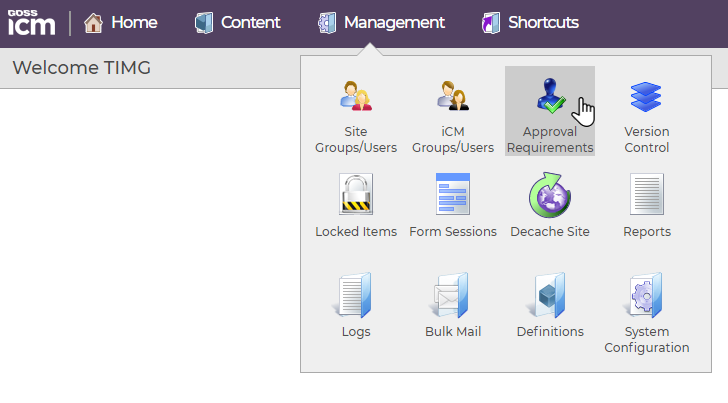
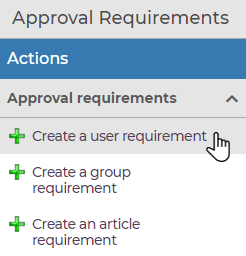
Then choose "Create a user requirement" from the left-hand menu:
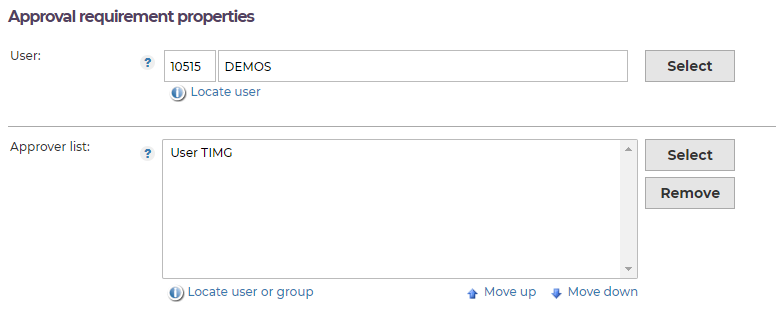
In the approval properties, pick your user who will be subject to the approval (ie the user with minimal privileges created earlier) and set yourself as the approver:
Press "Save this requirement" in the left-hand menu.
You've now created your first approval chain.
4. Submit some content
Log out of iCM and log back in as the user whose content will need to be approved.
Create an article
Create an article as your new user. On submit you'll see the approval dialog:
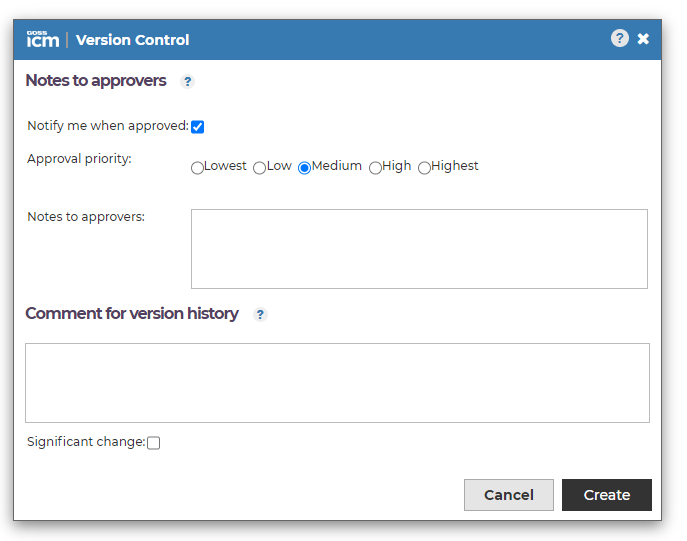
It has the following options:
- Notify when approved - tick this box if you'd like an email when the content is approved
- Priority - articles are listed in priority order on the approvals page
- Notes - these are visible to the person approving the article, they should explain what's been changed
Awaiting approval
You should now be able to see your new article waiting approval:

Troubleshooting
If you didn't get the approval dialog when you submitted your article, check that your user doesn't have the "Article Publish Immediate" privilege (either directly or via a group) and that you have added this user as the subject of an approval requirement.
5. Approve or reject the content
Log out of iCM and log back in as your normal user who will approve the content.
iCM tasks
On the iCM homepage you should see a task for the article that needs to be approved:

Double-click on the task to bring up the list of articles awaiting approval:

Right-click on the article to see a menu of options:
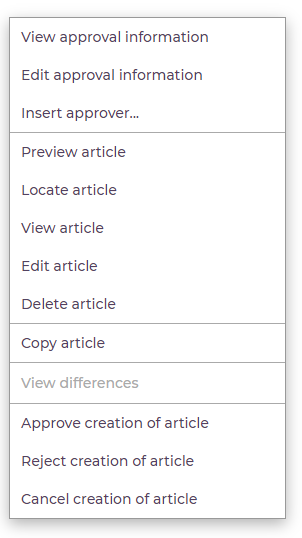
For this example, choose "Cancel creation of article" which will delete the content.
Troubleshooting
If you don't have the approval task, check that your user has the "Article Approvals" privilege and that you are logged in as the user who is the approver set in your user requirement.
6. Further reading
You've now created a simple approval requirement for a single user.
The following articles have more information about approvals, creating more complex approval chains, and how article, user and group approvals interact with each other:
- Article Approval Requirements
- Group Approval Requirements
- User Approval Requirements
- Awaiting Approval Articles - includes viewing approval information and handling rejected articles
- Approving Articles - all of the options in the approval menu
- Insert Additional Approvers


