
Before You Start
By the end of this guide you will have a working installation of Room Bookings with example buildings and rooms that can be booked.
The core element of Room Bookings is the Room, which is an article using the Slot Book template. This article displays a daily calendar of timeslots that can be booked, and its article extras hold settings like the name of the form used to make bookings, visibility of bookings, room details, admin user groups, whether rooms are paid for, and whether bookings need approval.
Buildings and floor are created in iCM, generally using the List and Location templates. Rooms are created using the Contribute form.
The final section of this guide shows how to set up paid-for, chargeable rooms.
Components
Almost all of the components for Room Bookings are installed as part of the Standard Site. You will need to manually import the Comms Manager templates and create a Form App shortcut for mapping Room Managers
Standard Site
The key elements included as part of the Standard Site are:
Templates
- Slot Book - used for each room
- Room Booking Search - used to search for rooms
Metadata
- A Room booking metadata group with the properties Facilities and roomTypes. These properties won't have any values when first installed
Forms
- Search for a booking (SBSEARCHBOOKING) - used by staff members to search for bookings
- Book a room (SBCREATEAPPOINTMENTROOMBOOKING) - used to make bookings
- Approve a room booking (SBAPPROVEAPPOINTMENTROOMBOOKING) - used to approve bookings if enabled
- Create a new room with contribute (ROOMBOOKINGCREATE) - used to create rooms
Workflow
- BP Slot Booking - Creates and handles bookings. Can be started by users in the CITIZENS and SLOTBOOKINGUSER user groups
- Room Admin - A version of the Contribute process used to create and manage rooms. Can be started by users in the CONTRIBUTE user group
End Points
- The main end point namespace is
goss.BookAndPay.RoomBooking . These don't need to be edited - The example
config.example.RoomBooking.getConfig andconfig.example.contributeroom.getConfig end points can be copied into the namespace of your current environment (covered later in this guide)
User Groups
- ROOMBOOKINGADMIN - These users are responsible for approving bookings and can also cancel and amend bookings
- ROOMBOOKINGUSER - Only allowed users can book onto rooms. This group is the default group that users will need to be in to make bookings and you'll find it as a child of the CITIZENS user group. When you create a room you can also pick (via the contribute form) the the users who can book it
- CONTRIBUTE - These users can create rooms
Import the CTM Templates
These are not automatically installed, but can be found using the File Manager in the latest import-icm-content directory:
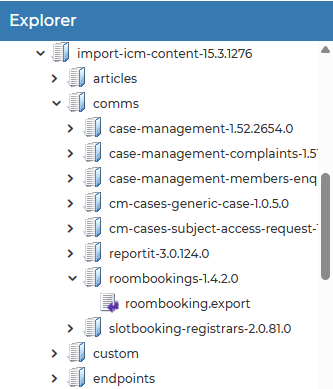
Right-click on the roombooking.export file and export it.
Open the Comms Template shortcut on the iCM desktop:
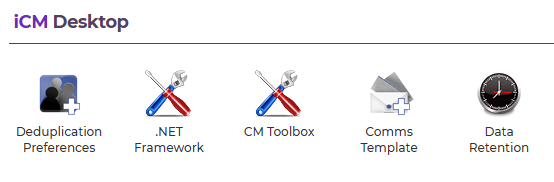
Use the "Import" button to import the file:

You'll now see RoomBooking in the application list:

User Groups
Add your website user to the CONTRIBUTE, ROOMBOOKINGADMIN and ROOMBOOKINGUSER groups.
Room Managers
Room Managers are able to update room details and archive a room (these are Contribute functions). They don't have access to the bookings in the room.
Create an iCM Form App shortcut (see iCM Shortcuts) for an iCM administrator user group that uses the "Commercial Room Bookings - Group Management" form.
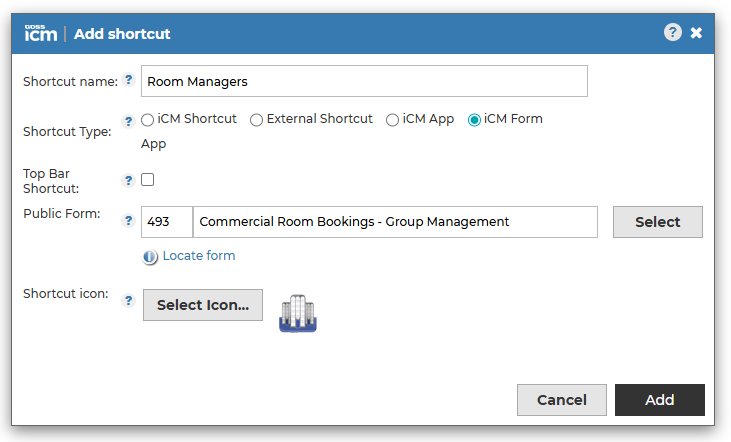
Once the shortcut has been created use it to pick the user groups responsible for rooms. This will probably be the same groups of users who create rooms, ie users who are also in the CONTRIBUTE group. See Configuration and Users for more information.
Articles
Before setting up any configuration, create the following articles.
Buildings
Create a basic article structure to represent your buildings. These need to be in an area of your site that the people making bookings can access.
Each building could use the List template, showing its floors as a list, or the Location template, which would allow you to include a map, and also display any events happening in the building. Buildings must have floors, even if they only have a single floor. Floors generally use the List template and will eventually display their child articles (which represent the rooms).
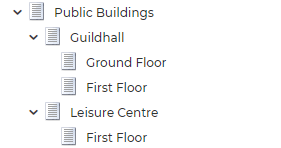
- Create a building and at least one floor
- Note down the ID of the building parent article (ie the ID of "Public Buildings" in the screenshot above) - it will need to be added to the configuration later.
Appointment Type Article
The bookings made in the room calendars are defined by an article using the Slot Type template. This article is never viewed by anyone, it just holds configuration.
- Create a single article using the "Slot Type" template beneath a hidden article
- Call it "Booking"
- Note down the ID, this will be added as the slotTypeId in the configuration
Management Articles
Create the following articles and make a note of their IDs.
There's more detail in Standard Articles.
| Article | Template | Article Extras | Related Content | Security |
|---|---|---|---|---|
| Create a Room | Forms Service | n/a | "Create a new room with contribute" form | Secured to staff members who are also in the CONTRIBUTE user group |
| Manage Rooms | Self Service | Set to display the Room Admin workflow process | n/a | Secured to the Room Manager user groups picked when setting up your rooms |
| Approve Bookings | Self Service | Set to display the BP Slot Booking workflow process | n/a | Secured to the Room Manager user groups picked when setting up your rooms |
| Bookings Search | Forms Service | n/a | "Search for a booking" form | Staff users |
| Room Search | Room Booking Search |
| n/a | Secured to the users who will want to make bookings, by default the ROOMBOOKINGUSER group |
| My Bookings | My Slot Bookings |
| n/a | Secured to the same groups as the Room Search |
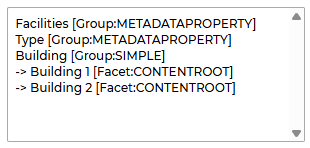
Metadata
Metadata is used to categorise rooms and describe the available facilities.
Two properties are included in the standard installation. Take a note of the property IDs as they will be added to the configuration end point later.
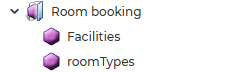
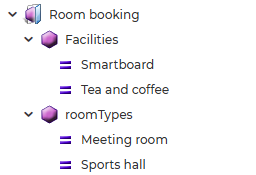
Create some values beneath each. These values will appear in the contribute form and be used as filters in the room search.
Room Bookings Configuration
Room Bookings has a single configuration end point.
Copy the Example
Copy the example
Update your Copy
The following should be set as a minimum. Any properties with default values can also be updated. If a property has a zero value, ignore it for now.
| Property | Description | Example |
|---|---|---|
| slotTypeId | The article ID of the "Appointment Type" article created earlier. This is an article using the Slot Type template which provides the configuration of the bookings that will appear in the calendars | 1039 |
| facilitiesMetadataPropertyId | The ID of the metadata property that holds values describing room facilities | 38 |
| roomTypesMetadataPropertyId | The ID of the metadata property that holds values describing types of rooms | 39 |
| comms.fromAddress | The email address that will be used as the sender address. This must be a verified sender address. | "[email protected]" |
| comms.fromName | The name that emails will appear to come from | "Bookings" |
| superAdminGroup | A staff site user group. This group will have full access to administer rooms | "RBSUPERADMIN" |
| myBookingsArticleId | The article ID of the "My Bookings" article, which logged-in users can use to manage their bookings. It uses the "My Slot Bookings" template | "1041" |
| Buildings | The parent IDs of the articles that hold your buildings | [1025, 1099] |
| APPOINTMENTVIEWFORM | The live ID of the SBVIEWAPPOINTMENTROOMBOOKING form. Note this is not the ID of the form in iCM, but the ID on the form's "Properties" tab | 474 |
| APPOINTMENTCREATEFORM | The ID of the SBCREATEAPPOINTMENTROOMBOOKING form. This form is used to make bookings that don't require payment. Note this is not the ID of the form in iCM, but the ID on the form's "Properties" tab | 470 |
| dataProtectionStatementURL | The full URL of a web page with your data protection/privacy statement. This is displayed in booking forms | "www.mywebsite.com/privacy" |
| termsAndConditionsURL | The full URL of a web page with your terms and conditions. This is displayed in booking forms | "www.mywebsite.com/terms" |
Contribute
The Contribute forms and workflow process are used to create rooms.
Create an API Key
Contribute uses the iCM API to create content. If you are already using Contribute (for example for Events) you could use the same key for Room Bookings.
If you'd like to use a separate key for each instance of Contribute, there's more information in iCM user and API key.
Copy the Example
Copy the example
Update your Copy
The following should be set as a minimum. Many of the usual properties needed for contribute (root articles etc) are taken from the Room Bookings config end point instead.
| Property | Description | Example |
|---|---|---|
| apiKey | An API Key which supplies default user iCM credentials with the ability to create/edit articles and media items, see above. The user will need access to the rootMediaGroupID (below) and the Buildings root articles set in the Room Booking configuration end point | "10FC1546-xxxx-xxxx-xxxx-BFC2B3D30348" |
| rootContributeGroupID | The ID of the user group allowed to create rooms (ie the Contribute user group) | 20 |
| templateID | The ID of the Slot Book template definition | 46 |
| rootMediaGroupID | The ID of a media group where any media uploaded when a room is created (eg floor plans) will be stored. Make sure the iCM user identified by your API Key has full access to this group | 70 |
Create a Room
Time to test that things are working! There's more detail in Creating Rooms
Navigate to the "create a Room" article you created back in the Articles section. You should see the following form (click for a larger view).
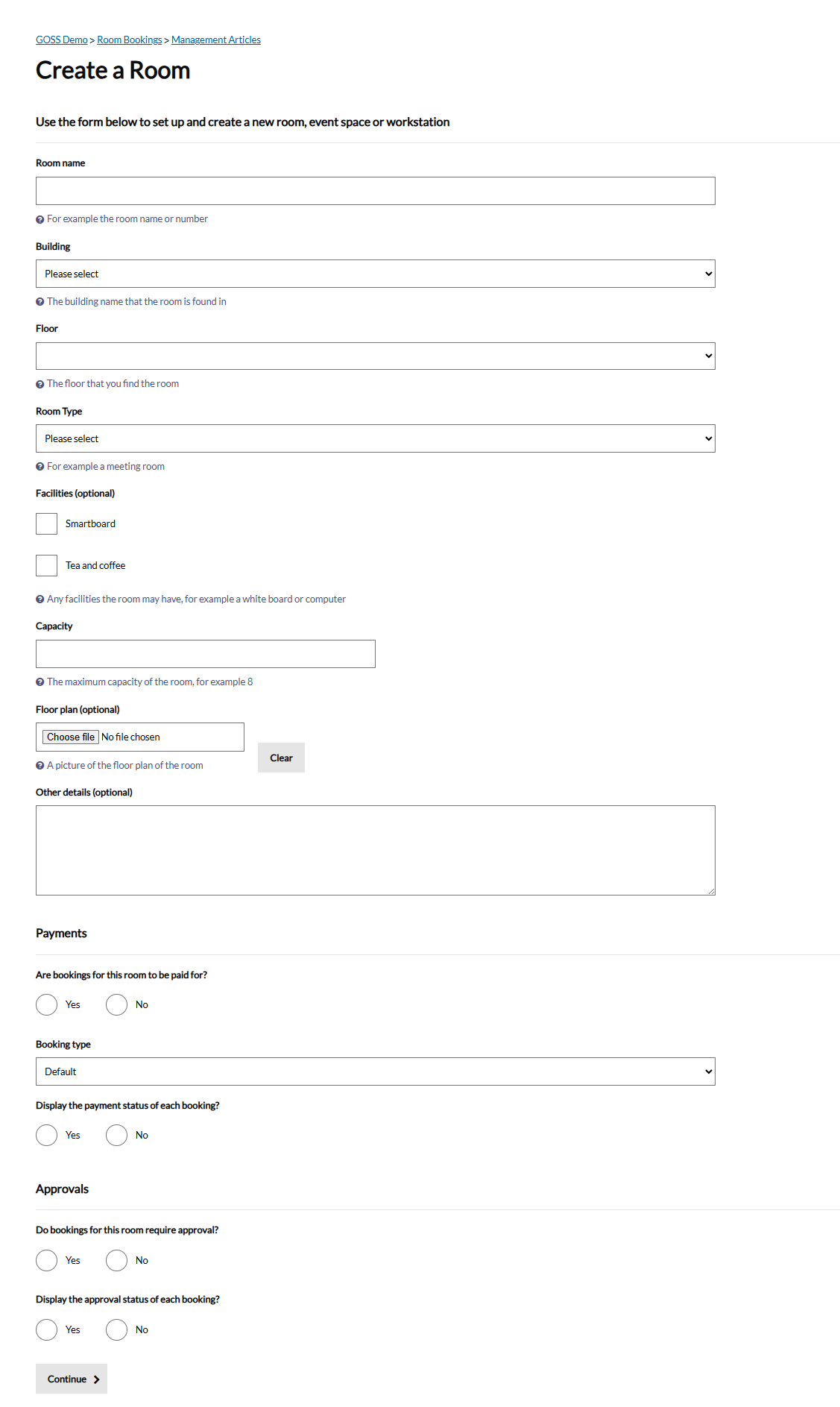
You should be able to confirm the following.
Page 1
- The "Building" drop-down lists your building articles. If not, check the
Buildings array of article IDs in yourRoomBooking.getConfig end point - The "Floor" drop-down lists the floors of your selected building
- The "Room Type" drop-down lists the values of your
roomTypes metadata property. If not, check theroomTypesMetadataPropertyId in yourRoomBooking.getConfig end point - The "Facilities" checkboxes match the values of your
Facilities metadata property. If not, check thefacilitiesMetadataPropertyId in yourRoomBooking.getConfig end point - The "Booking Type" drop-down will just display "Default" and when you create your room it will use the
slotTypeId in yourRoomBooking.getConfig end point. This drop-down can be expanded using theslotTypeMap config setting, which is covered in the advanced sections at the end of this guide - The "Approvals" and "Payments" options are always displayed on the form, even if approvals and payments haven't been set up
Page 2
Enter the opening times of the room. This page isn't configurable. The drop-down will prefill fields for you, which can then be edited.
Page 3
- The "Room Management Group" drop-down should list the mappings you set up in the Room Managers shortcut back in Components. These users are responsible for updating the room article itself
- "Administrators Group" are responsible for approving bookings (if set up) and can also search for, cancel and amend bookings. The default is ROOMBOOKINGADMIN
- Enter the names of the user groups who are allowed to book this room. The default is ROOMBOOKINGUSER
- "Visibility Settings" - Pick "Yes" to hide all this information on the calendars, ie if the calendars are public. Only pick "No" if you are using Room Bookings for something like a staff intranet meeting rooms
Page 4
Check your answers and submit. In iCM check that your room has been created in the building/floor you selected.
Create a Test Booking
Find your newly created room, click on a timeslot, and create a test booking. It can take a few seconds for your booking to appear in the calendar.
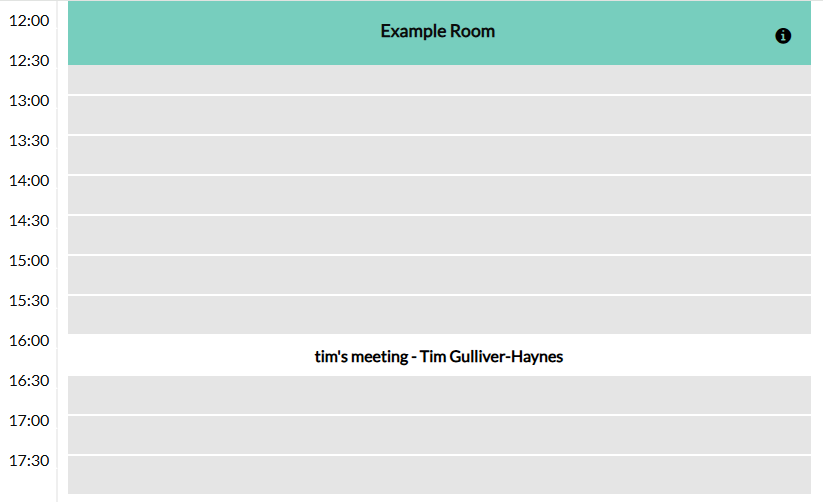
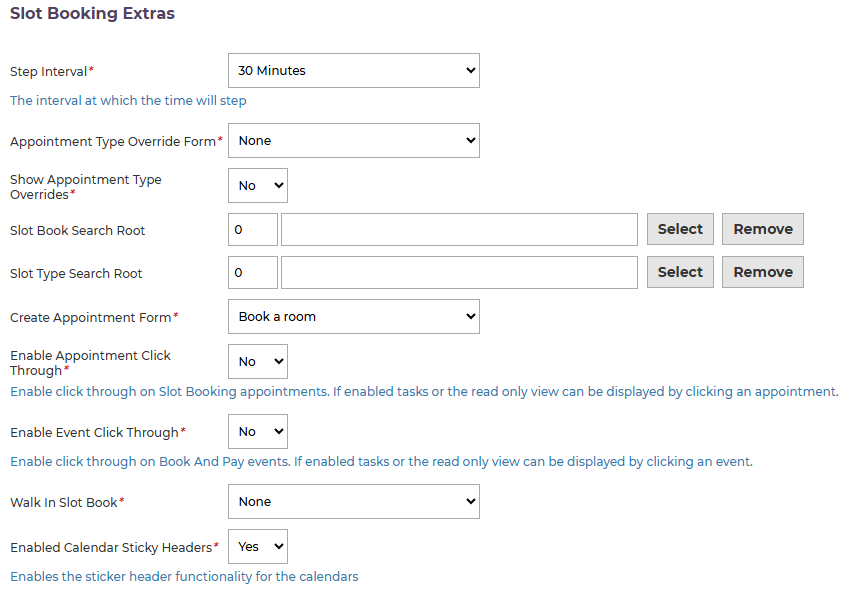
The booking form will be the APPOINTMENTCREATEFORM set in the Room Bookings configuration. The default is SBCREATEAPPOINTMENTROOMBOOKING. You can also see this form in the article extras of your room:
More Buildings, Floors and Rooms
You can now create more buildings and floors in iCM.
If you create buildings under more than one content root, at the root article IDs to the
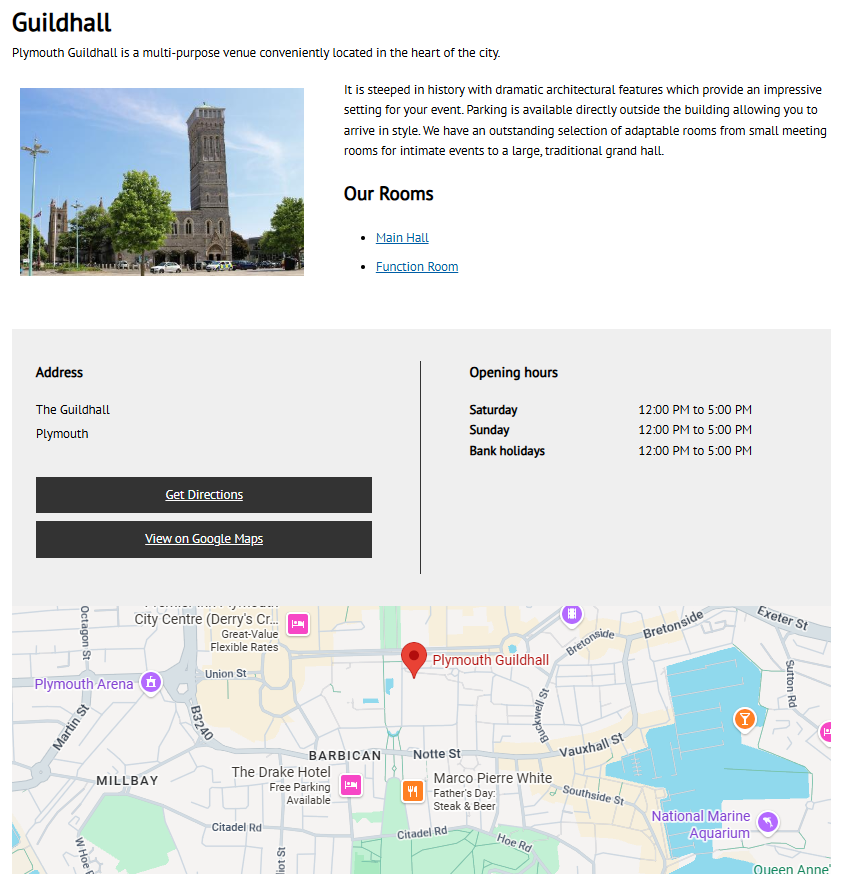
Rather than using Lists, the Location template works well, adding the rooms as inlines in the article body text:
Chargeable Bookings and Rooms
Room bookings can also be chargeable.
Whether a room needs to be paid for, and how much it costs, is stored against the room itself. It is possible to have a mix of free and paid-for rooms.
Enabling Charging
In the
COMMERCIALAPPOINTMENTCREATEFORM - Enter the "Live ID" of theSBCHAINEDCREATEAPPOINTMENTCOMMERCIALROOMBOOKING form. Note this is not the ID of the form in iCM, but the ID on the form's "Properties" tab- You'll need to set up a payment provider. See the main configuration article at Configuration and Users
Creating a Chargeable Room
Use the same contribute article as standard rooms, but on the form also select:
- Are bookings for this room to be paid for? - Yes
- Enter a price
- Choose when payment should be taken
- Choose whther or not the payment status should be displayed on the room calendar


