
Applications
Templates are organised by application (ie a product, or instance of a product, like a case type). Each application can have any number of templates, and each template will have a number of variants.
All of the products we release that use the CTM have a default set of templates. You'll see a list of these when you first open the CTM.
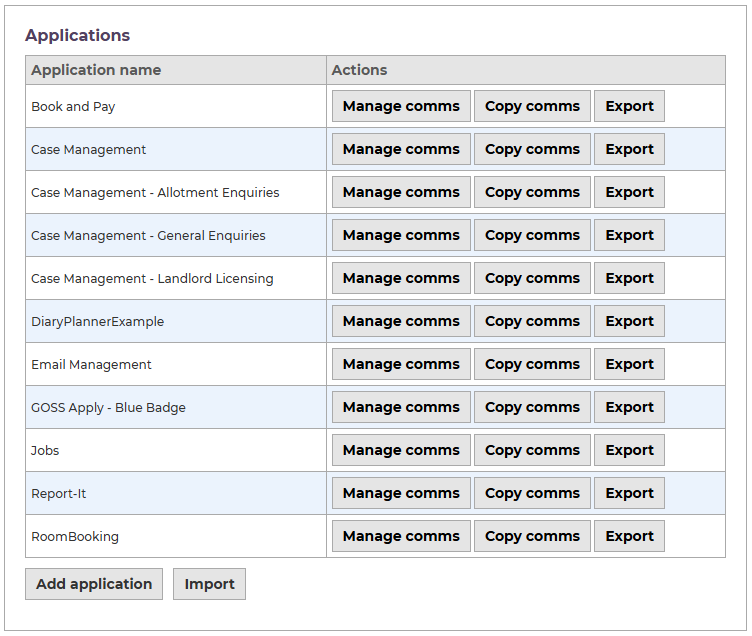
Manage Comms
This action button lets you edit an existing application and its templates.
Copy Comms
You can copy a complete application by pressing the "Copy comms" button. Enter a new name and contact email (see below), and your copy will appear in the list of applications.
Export
Press the "Export" button to download a copy of the application. It can be imported into another CTM in a different environment.
Adding a New Application
Press the "Add Application" button to create a new application.

Applications have a name, which is used when calling the CTM, and a contact email.
Application Email
The contact email should be that of the "owner" of the application. This address will be notified if any "inactive" templates are used. See Inactive Templates and Fallbacks.
Templates
Each application has a set of templates, which can have a number of variants. To edit a template, or create a new one, press the "Manage comms" button in the list of applications.
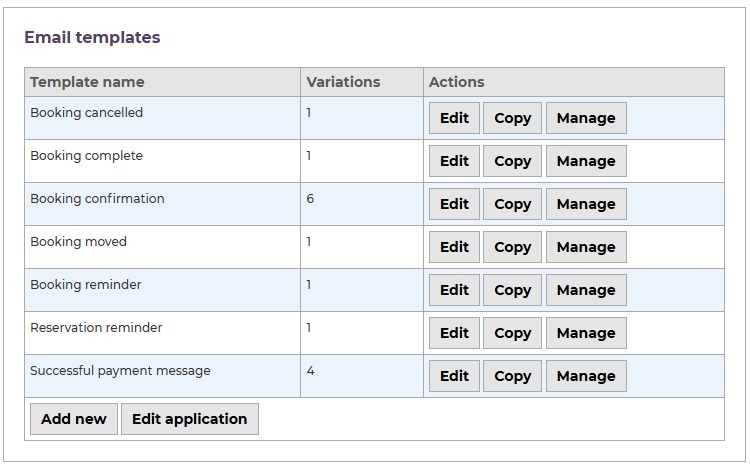
Creating a New Template
To create a new template, press the "Add new" button.
Each template within an application has a unique name. You'll receive a warning if you try to create a template with a name that is already in use.
Edit
The edit button next to each template lets you update the template name and flag it as inactive (see Inactive Templates and Fallbacks).
Take care if you edit a template name - you'll also need to update anything that uses the template with the new name.
Copy
You can copy a template and all of its variants by pressing the "Copy " button. Enter a new name and your copy will appear in the list of templates.
Manage Template
The "Manage" button displays the list of variants held against each template. Each variants holds the actual text and markup of the template.
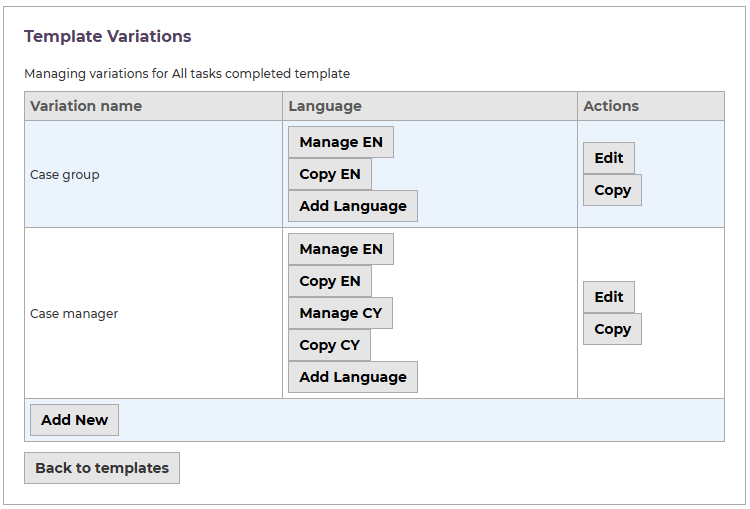
You might have a variant of a template that is sent to logged in users, another sent to anonymous users, and a third sent to staff members. Each can also have up to three different language versions. The three language options are English, Welsh and Gaelic.
From here you can:
- Manage Language - Edit the markup of this template
- Copy Language - Copy this language variant
- Add Language - Add a new language to this variant
- Edit - Edit the variant name
- Copy - Copy the variant and all of its language versions
Edit Variant - HTML Template
HTML is the standard way to write templates. Your template is combined with placeholder tokens to construct the email.
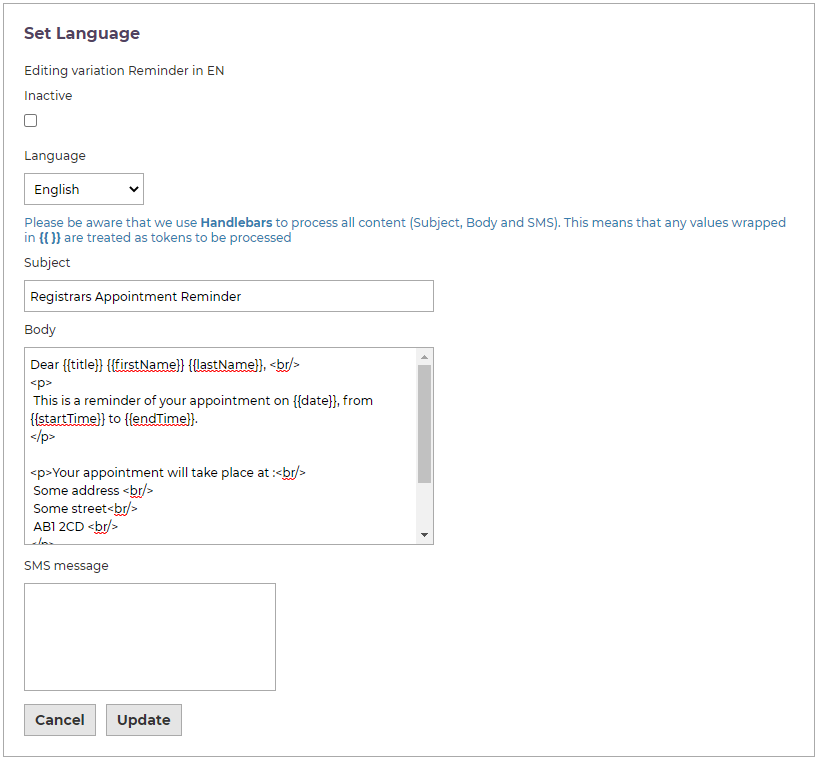
HTML Body
The template body is returned when a request is made for an application, template, variation and language. The body can include Handlebars expressions which will be expanded when your template is used.
Allowed elements:
html body span div a p br ol ,ul ,li blockquote hr table ,thead ,tbody ,tr ,th ,td caption h1 ,h2 ,h3 ,h4 ,h5 ,h6
Allowed attributes:
style id href colspan rowspan
If you are using Case Management you can add additional elements and attributes in your Environment Configuration (additionalAllowedElements and additionalAllowedAttributes).
Tokens
The tokens that you can use in your templates depend upon the product you are creating a template for. These are documented in the relevant product areas, for example Bookings message templates and Case Management message templates.
Edit Variant - Markdown with GOV.UK Notify
The Comms Manager also supports sending emails via GOV.UK Notify, with templates written in a subset of Markdown.
This article describes a premium service. You'll need to have a GOV.UK Notify account and the GOSS GovNotify Connector (worker) to use this feature.
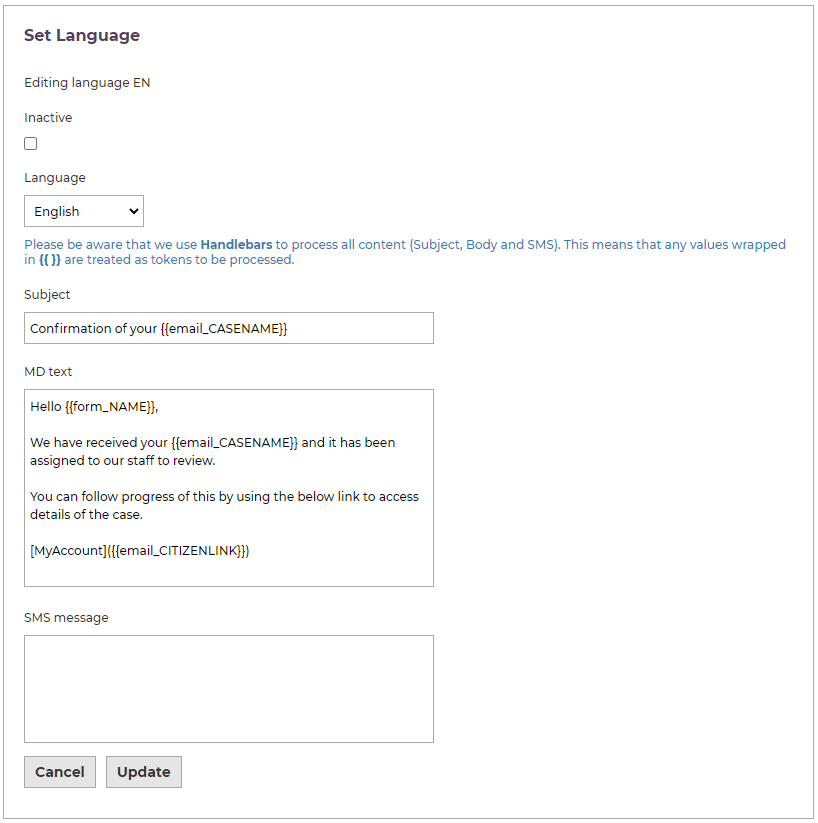
Markdown Template
Markdown templates are enabled when the Configuration is set to use GovNotify.
Making this change is universal - all of your templates will need to be rewritten using Markdown, and all emails will be sent via GOV.UK Notify.
The Notify service doesn't use the full Markdown syntax. See https://www.notifications.service.gov.uk/using-notify/formatting (opens new window) for the supported elements.
The expected use is for your full template to be written in the Comms Manager. This includes any product specific tokens, which will be expanded as the template is processed. See Bookings message templates and Case Management message templates for the current lists of available tokens.Your template is then passed to the Notify service as the ((body)) element in the GOV.UK Notify template.
Example
This body template includes Markdown syntax for a link and some tokens for Case Management.
Hello {{form_NAME}},

We have received your {{email_CASENAME}} and it has been assigned to our staff to review.

You can follow progress of this by using the link below to access details of the case.

[MyAccount]({{email_CITIZENLINK}})
Note the use of square brackets for the link text, and the
This is passed to a basic template in Notify with the following placeholders:
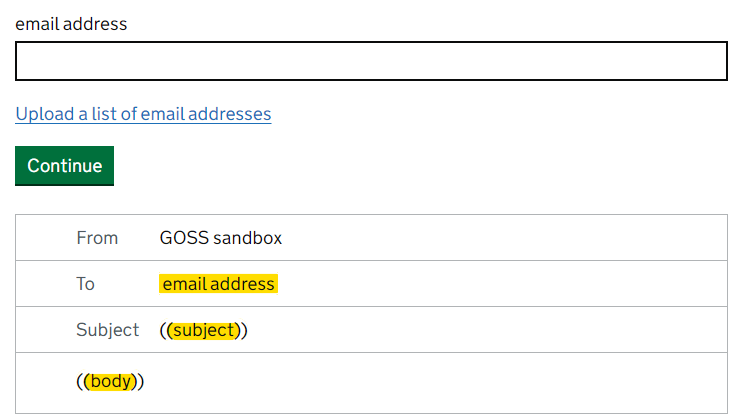
The ID of this template is held in the Configuration and will be used for all emails sent via the Comms Manager.


